
The custom domain name is a unique URL for a website that provides brand value to the website or blog; for example, the domain name for Google is www.google.com. I’ll explain how to configure a custom domain name like www.example.com to the Blogger blog instead of subdomain.blogspot.com.
Recently Blogger updated to the new interface. Let’s understand how to configure a domain name in the new interface of Blogger.
How to Setup a Custom Domain Name Blogger
Setup a Blogger Custom Domain Name.
After setting up a custom domain name, the blog can access using your domain name, like www.example.com. For example, suppose you bought a domain name www.exmaple.com and configured it to the Blogger blog. After successfully setting up the domain name, the Blogger blog can be accessed using www.example.com.
So, what you’re waiting for? This will change the Blogspot address from mywebsite.blogspot.com to mywebsite.com, which means the blog will be available on mywebsite.com. Let’s understand how to do this.
Set custom domain Name for Blogger Blog.
First, purchase a desired domain name from the domain name registrar. The domain name plays a significant role in SEO and brand identity, so you should consider the following things before buying a domain name. After purchasing a domain name, visit the Blogger dashboard and follow the steps:
- Click on the Settings button.
- Scroll down the page to Publishing Section
- Click on Custom Domain.
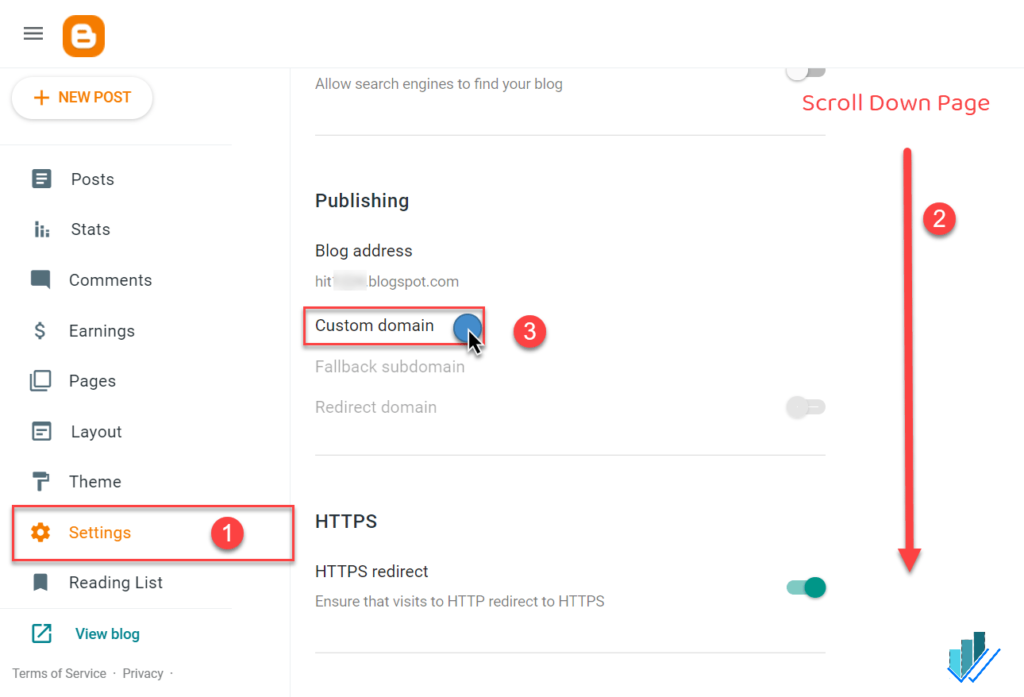
Blogger Domain Name Settings
- Enter the domain name recently bought.
- Click on the Save button to generate CNAMEs.
- The system will respond with an error and provide CNAME values updated on the domain name provider. **It will generate two CNAME values;**the first is common, and the second is a unique CNAME value. You must enter these CNAME values in upcoming steps(number 11 in this article).
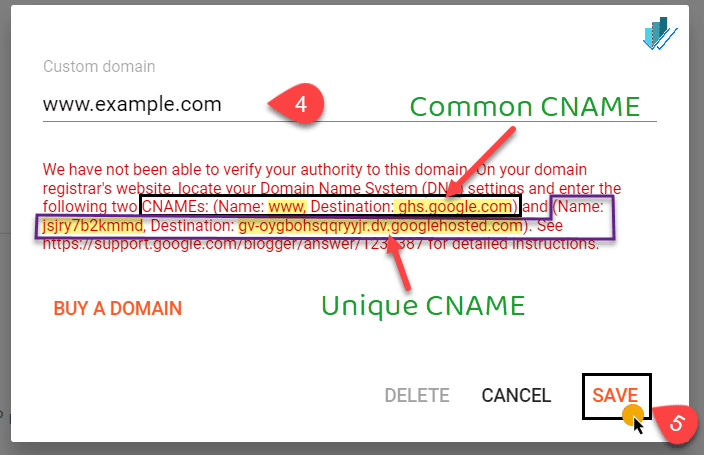
DNS Values to Update for Blogger Custom Domain
-
To update these DNS settings, log in to the Domain Name Provider account like Namecheap, Godaddy, etc.
-
Find the DNS Settings options of the domain name provider.
-
Now add HOST and POINT or Target Values.
-
First, we’ll add A Records (these are common).
- There will be four A Records. Updateall these to Google’s IP.
- Add Symbol “@” in the Host of all A Records values.
- And point value add IP given below one by one.
- 216.239.32.21
- 216.239.34.21
- 216.239.36.21
- 216.239.38.213. Now update CNAME (two in number)
- Common CNAME for all is Name: www, Destination: ghs.google.com
- Unique CNAME generated for every blog, in the above-displayed case, Name: jsjry7b2kmmd, Destination: gv-oygbohsqqryyjr.dv.googlehosted.com check step 5 where it is generated.
Check below. The settings will be similar to
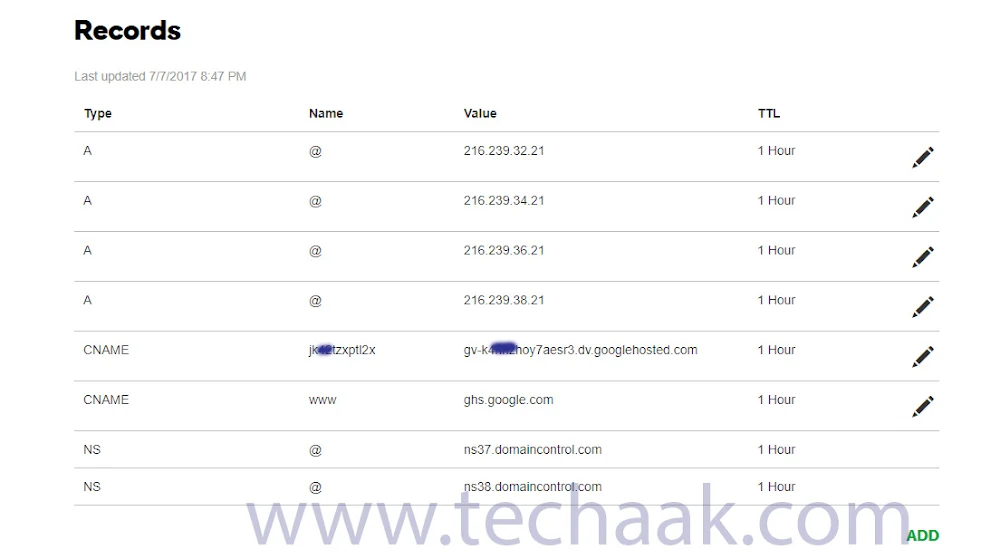
Updated DNS to the provider
The new settings for the domain name will take some time to update the server, depending on how much Time to Live(TLL) time you choose (in our case, it is 1 hour, check the screenshot above). Usually, Domain Name Providers display TTL value in seconds. If the value is 7200, your DNS changes will Live after 2 hours.
Check whether your DNS values are updated or not using an online DNS lookup tool.
Enable HTTPS for the custom domain
HTTPS is secure communication to your blog. It will build trust in users and is also crucial for SEO.
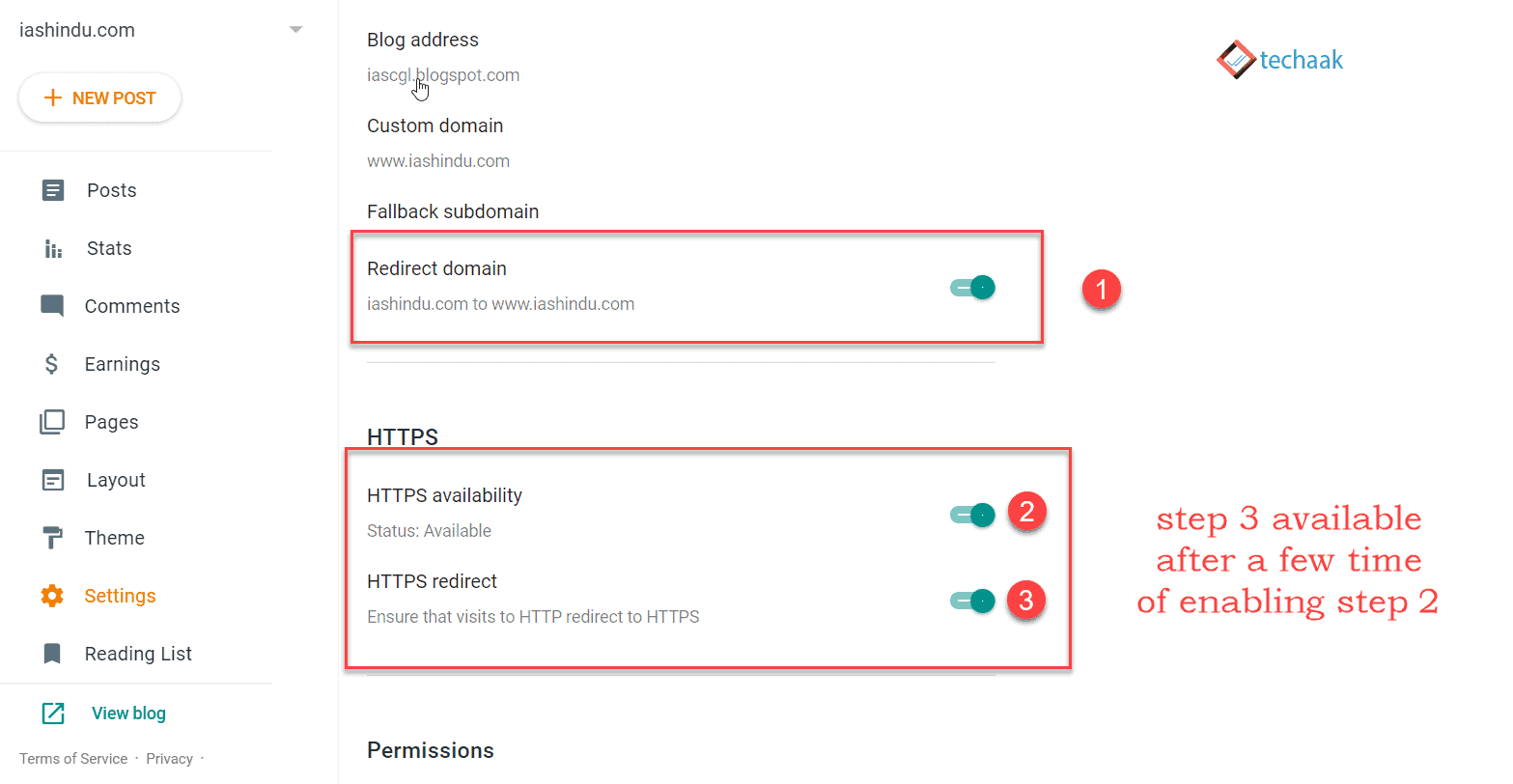
You have to point your website to a single HTTPS URL. Under the fallback subdomain redirect domain settings-
- Enable Redirect Domain from naked domain to www version of the domain.
- Turn on a secure server using HTTPS, and enable HTTPS availability. Please note this will take a few minutes, and the website will not be reachable during that time, or an error message will be displayed.
- After a while, the website will be live again with HTTPS. Turn on HTTPS redirect to avoid SEO conflicts.
Now the blog is set to the custom domain. The m=1 SEO issue for the Blogger can read [Solved 100%] Blogger Duplicate URL for Mobile m=1 SEO issue.
Final Words
This article explained how to set up a custom domain name for the Blogger blog. And enabling HTTPS for Blogger’s custom domain name.
In case of any doubt, query or feedback, feel free to ask in the comment section below.
JOIN THE CONVERSATION
Comments
Have a question or something to add? Comments are moderated and appear here only after approval.
JavaScript is required to submit a comment. Published comments above remain available to read.
14 published comments, including 3 replies. Threads shown oldest first.
In reply to omar
In reply to Rutvik
In reply to Ashok Sihmar