
THE SHORT VERSION
What you’ll take away.
- A page that looks complete in your browser may depend on JavaScript to supply its main content.
- Compare the HTML response with the rendered page before deciding where a problem starts.
- Important content needs accessible resources, crawlable links, and consistent page settings.
- Server-side and static rendering can reduce dependencies, but neither guarantees indexing.
- Use Google's rendered output to test a fix, then review the indexed version separately.
You open a web page and everything looks right. The heading is there, the text loads, and the links work. Then you inspect the page in Google Search Console and find a different picture: a loading message, missing content, or a page that has not been indexed.
That difference is a reason to investigate. It does not automatically mean Google cannot read JavaScript, or that the website needs to be rebuilt.
The useful question is what reaches Google, and what has to happen before the important content becomes available?
This guide explains the answer in plain English. You’ll learn how crawling, rendering, and indexing fit together, what to compare when a page looks incomplete, and which changes can make its content easier to access. If you manage a website, you can use the checks to investigate one page before making changes across the whole site.
What is JavaScript SEO?
JavaScript SEO is the work of making a JavaScript-powered website’s important content accessible and understandable to search engines. It includes checking how pages are discovered, what the server returns, what scripts add or change, and whether the resulting page can be considered for indexing.
JavaScript often powers menus, filters, interactive forms, and page updates. It can also create most of the text and links on a page. The amount of work it does matters more than simply whether a website uses it.
A page with a small interactive feature has different dependencies from a page that starts as an empty container and loads its entire article through a script.
That is why a useful review starts with the page’s actual output. A framework name alone does not tell you whether the main content is accessible.
Source HTML and rendered HTML: why the difference matters
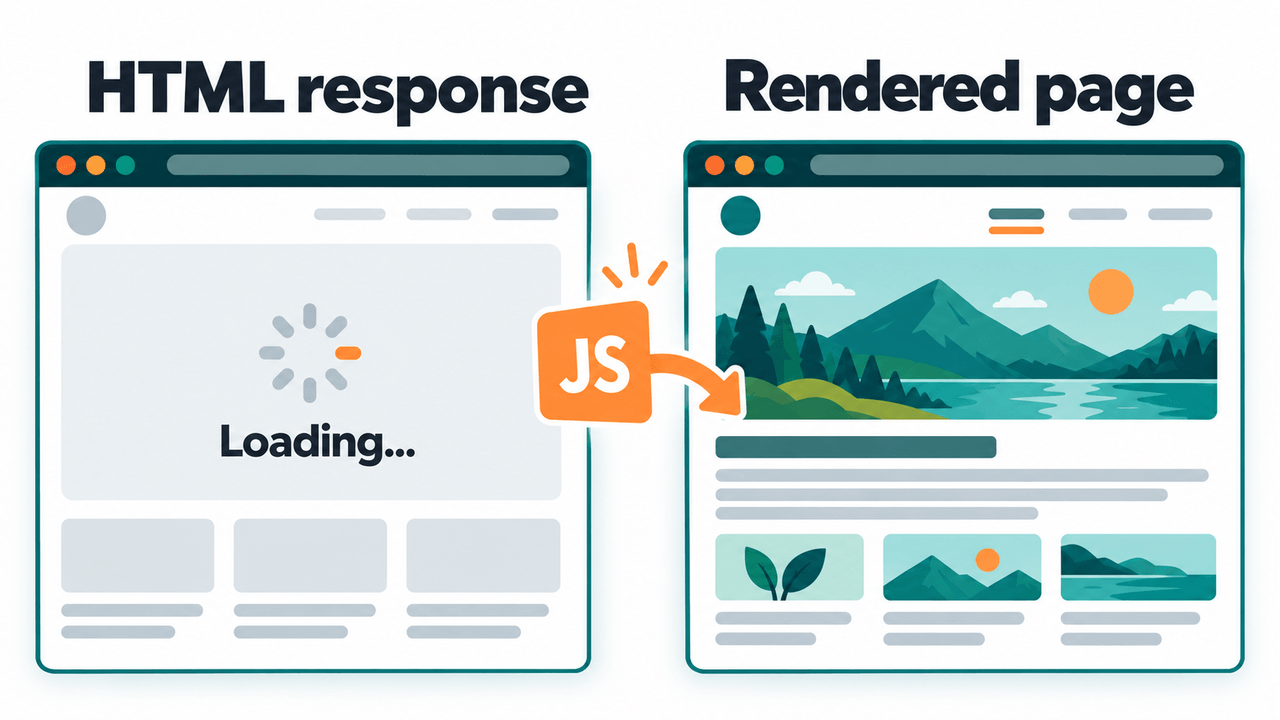
When a browser requests a page, the server sends a response. Its HTML may already contain the main heading, paragraphs, and navigation. Or it may contain only a basic layout and instructions to load more content.
The browser builds a document from that response. JavaScript can then add, remove, or change parts of it. The browser’s current representation is called the Document Object Model, or DOM. MDN’s DOM documentation explains how scripts interact with this structure.
For SEO checks, it helps to distinguish these two views:
| View | What you are examining | Useful question |
|---|---|---|
| Source HTML | The page document returned by the server | Is the important content already in the response? |
| Rendered HTML | The document after the browser has processed the page and its scripts | What was added, removed, or changed? |
For example, a shop page might initially contain a loading message. JavaScript requests the product information and replaces that message with a description. A browser that completes the request shows the product; a failed request can leave the description missing.
The missing source text tells you that the page depends on another step. It does not prove that Google fails to complete that step. You need to inspect the rendered result as well.
Our guide to HTML5 page structure explains the underlying document elements. JavaScript SEO adds another question: what does the page become after its scripts run?
How Google processes JavaScript pages
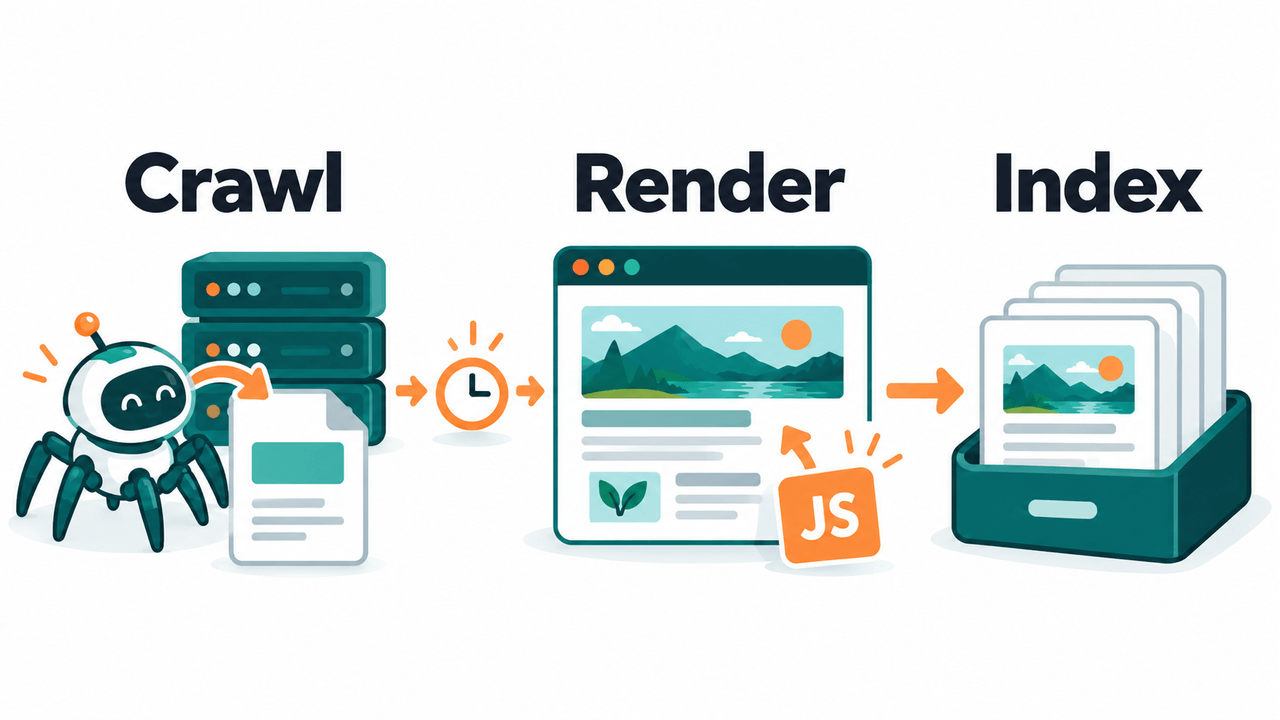
Google describes three main phases: crawling, rendering, and indexing. Pages can wait between phases, so these are not three instant actions. Google’s JavaScript SEO basics explain the processing and rendering queues.
Crawling: requesting the page
Google discovers a URL and, if crawling is allowed, requests it. It examines the response and can discover links in the returned HTML. A blocked URL or unsuccessful response changes what can happen next.
An XML sitemap can help with discovery. It does not supply missing page content or make a broken application render correctly.
Rendering: processing the page and its scripts
Google uses a browser-based rendering system to process pages and run supported JavaScript. This can reveal text and links that were absent from the original response. Essential scripts and data must be accessible for that work to succeed.
Indexing: evaluating the available content
Google uses the page information in its indexing process. Rendering successfully is one requirement to investigate when content depends on scripts; it is not a promise that a page will be indexed or rank. Google’s explanation of how Search works puts indexing in that broader context.
Client-side, server-side, and static rendering
These terms describe where or when the page’s HTML is produced. They help you understand dependencies rather than identify a single correct choice for every website.
| Approach | How the main HTML is produced | What to check |
|---|---|---|
| Client-side rendering | JavaScript builds content in the browser | Can scripts and data load without failures or required user actions? |
| Server-side rendering | The server generates HTML for a request | Does the response include the important content, with suitable delivery time and caching? |
| Static rendering | HTML is generated in advance, usually during a build | Are the required URLs generated, and is their content kept current? |
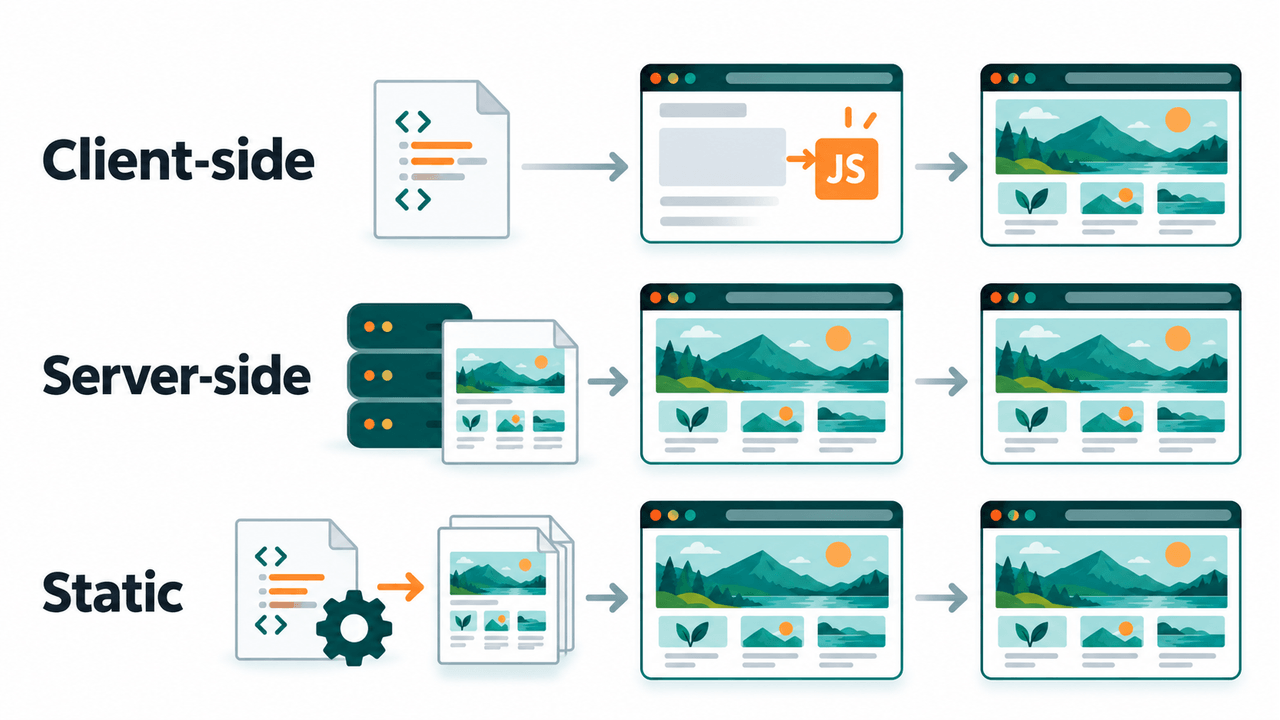
A site can combine approaches. It might send article text as HTML, then use JavaScript for an interactive tool. Hydration is the process of connecting client-side application behavior to HTML that was already generated.
Server or static rendering can make content available with fewer browser-side dependencies. They still need correct links, responses, metadata, and usable performance. Heavy scripts after the HTML arrives can still delay interaction. web.dev’s rendering guide explains these tradeoffs.
If loading is the problem, our Largest Contentful Paint guide gives context for investigating when the main visible content appears. Loading speed and search indexing are related checks with different outcomes.
Common JavaScript SEO problems
The most useful fix is the one connected to an observed failure. Work through the following areas when source content, browser content, and Google’s result disagree.
Essential scripts or data cannot load
A page can be accessible while a JavaScript file it needs is blocked. A script might also load successfully but receive an error when requesting content from an API, a service that supplies data to the page.
Check the exact failing resource. Look at its response, access requirements, and whether it contains the information needed for the missing section. Google provides a JavaScript troubleshooting guide for investigating resources and execution problems.
If a robots rule blocks an essential file, review that rule deliberately. Our robots.txt guide explains the file’s syntax. Do not remove every restriction simply to make one page work; establish what the blocked resource does first.
Navigation works only after a click handler runs
A visible control is not necessarily a link that a crawler can discover. For navigation to another page, use an anchor with a real destination:
<a href="/services/">Explore our services</a>A button that runs code to change screens does not provide the same link information. Buttons remain appropriate for actions such as submitting a form or opening a dialog.
JavaScript can enhance an ordinary link while preserving its destination. It can also insert valid links into the rendered document. Google’s crawlable-link guidance explains the supported anchor pattern.
Give distinct pages useful URLs, and test those URLs by opening them directly. A route that works only after visiting the homepage needs attention. Avoid using fragment routes such as #/services as the sole address for separate indexable content.
The internal-linking guide explains how these connections help people continue through a website. For a JavaScript review, inspect whether the relevant destinations exist in the document, not just whether clicking seems to work.
Important content waits for an interaction
Some pages wait for scrolling, a click, or another event before loading additional text. Do not assume Google will perform those actions to obtain the main answer.
Google’s lazy-loading guidance recommends implementations that do not depend on user interactions for discoverable content. If a long list uses infinite scrolling, provide a crawlable way to reach its additional items.
Also distinguish content already present but collapsed from content that has not been loaded at all. A closed tab or accordion is a reason to inspect its document content, not proof that the content is inaccessible.
Indexing directives prevent the intended result
A page may render correctly and still tell search engines not to index it. Check both robots meta tags in the HTML and the X-Robots-Tag response header.
Google needs access to a page to see its noindex instruction. Blocking crawling and expecting that same page’s noindex to be processed can therefore work against your intention. Google’s noindex documentation explains this distinction.
Avoid a template that sends noindex in the initial HTML and relies on JavaScript to remove it. Google may skip rendering after seeing that initial instruction. Check the server output as well as the document shown in your browser.
Titles, canonicals, or structured data change unexpectedly
Each important URL should describe its own content. A shared application template can accidentally give every route the same title or canonical address.
Use the title-tag guide to review the page’s label, then compare it before and after JavaScript runs. The H1 guide helps you check whether the visible main heading expresses the same page purpose.
A canonical annotation identifies a preferred version among duplicate or similar URLs. Keep it consistent between the initial response and rendered document. Avoid scripts that add a second, conflicting canonical or replace a correct address with the homepage. Google’s canonical guidance explains how to keep signals aligned.
If JavaScript generates structured data, inspect and validate that output too. Our schema markup guide covers that workflow. Valid structured data does not repair missing visible content.
Every route returns the same success response
An application might show a “page not found” message while the server still returns 200 OK. That response describes a successful request even though the intended content is unavailable.
Test a valid URL and a deliberately nonexistent URL. Check both the HTTP response and what the application displays. Missing pages should receive suitable error handling; moved pages need an appropriate redirect. Google’s HTTP status-code documentation explains how its crawlers treat these responses.
A URL change in the browser’s address bar does not establish which status the server returned. Inspect the request rather than inferring it from the screen.
How to investigate one page
If you have access to the website and its Search Console property, start with one affected URL. Choose a page whose main content you can recognize, and record what is missing before changing anything.
1. Compare the response with your browser’s document
Open the page directly in a fresh browser session. Use View page source, or inspect the main document’s response in the browser’s Network panel. Search for a distinctive sentence from the page.
Next, use Inspect to examine the current document in the Elements panel. Search for that same sentence. Notice whether it appears as page text, only inside a data or script block, or nowhere at all.
Text stored in a script’s data object is not the same observation as a paragraph present in the document. Record the difference instead of treating a simple text search as the entire diagnosis.
If you are comfortable with the browser console, this read-only snippet can help locate a few page values:
({
  title: document.title,
  heading: document.querySelector('h1')?.textContent.trim(),
  canonical: document.querySelector('link[rel="canonical"]')?.href,
  robots: Array.from(document.querySelectorAll('meta[name="robots"]'))
    .map(tag => tag.content)
})
It examines the current document. It does not inspect response headers, detect every duplicate tag, or tell you what Google has indexed.
2. Examine Google’s tested and indexed versions
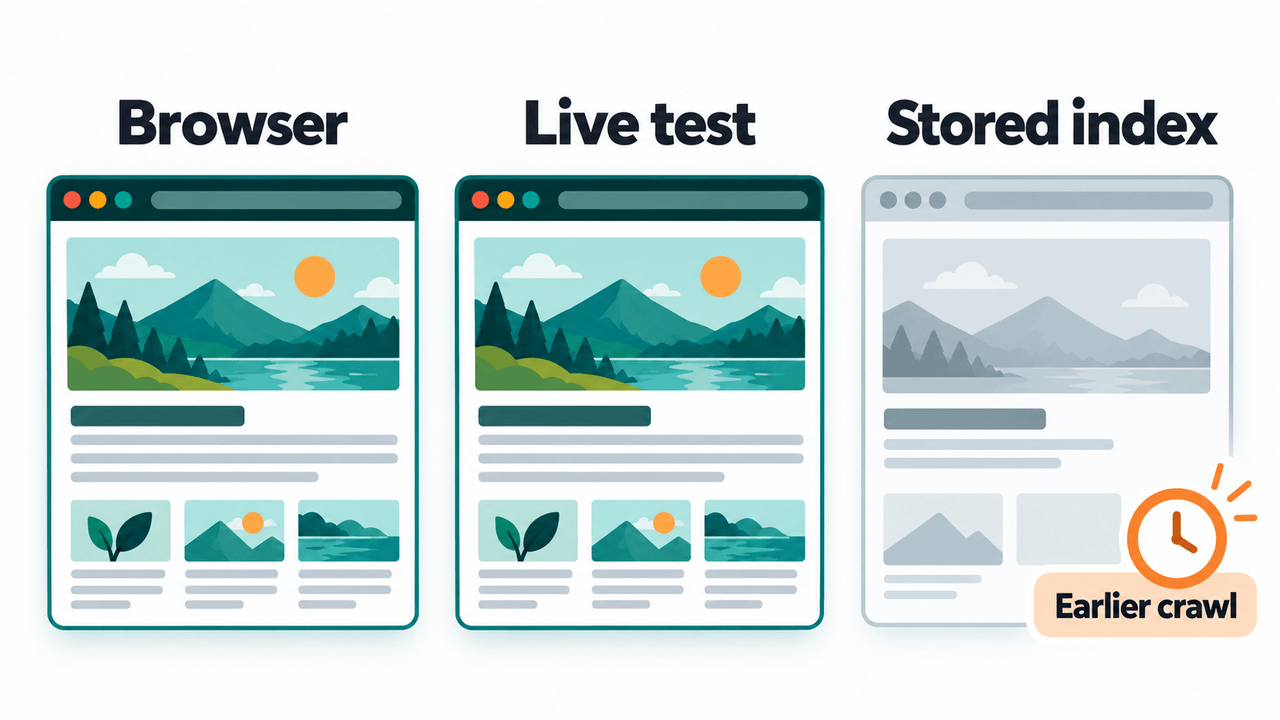
In Search Console, inspect the full URL. Review the stored indexing information and its crawl date. Then choose Test live URL to examine the page as it is currently available.
Where available, open View tested page and check the HTML, screenshot, and resource or JavaScript details. Search for the important heading and sentence, and compare them with your browser observations.
The live test and indexed report answer different questions. A live test helps check current accessibility; the indexed report describes Google’s stored information. The live test does not predict the selected canonical or guarantee indexing. Google’s URL Inspection help explains these limits.
3. Trace the first observed failure
Use the difference to narrow the investigation:
| Observation | Next check |
|---|---|
| The main document cannot be fetched | Response errors, access controls, and crawl restrictions |
| Your browser adds the text, but Google’s tested HTML lacks it | Essential scripts, data requests, and execution errors |
| Content appears only after an action | The loading trigger and an alternative crawlable route |
| Directly opening a route fails | Server routing and the response for that URL |
| The current test works, but stored information differs | Crawl date, indexing directives, and canonical information |
Do not treat “Crawled – currently not indexed” alone as proof of a JavaScript problem. It does not identify a specific rendering failure. Establish whether the main content is available before deciding which problem to solve.
Avoid changing rendering, robots rules, and canonical settings together without a clear reason. A focused change gives you a result you can explain and verify.
4. Retest and record the outcome
Repeat the comparison after the fix. Check the same URL and the same important content, then test other pages that use the affected template.
Record what changed, when you deployed it, and what the new test shows. An observation such as “the main description now appears in the tested HTML” is more useful than “JavaScript SEO is fixed.”
If appropriate, request indexing after correcting the issue. Continue to review the stored indexing information later; a successful live test does not mean the index has already been updated.
A practical JavaScript SEO review checklist
Use this as a final review of the page you investigated, rather than as a reason to change every setting:
- The intended URL opens directly and returns an appropriate response.
- Its important text and heading appear in Google’s tested document.
- Essential scripts and data requests are accessible.
- Navigation uses discoverable links with real destinations.
- Additional indexable content does not depend solely on a user action.
- Titles, canonicals, and indexing directives match the page’s purpose.
- The page works without relying on your existing signed-in session.
- Any generated structured data describes the visible content.
- The result has been checked on representative pages using the same template.
Keep a short note beside each uncertain item. That gives a developer or SEO reviewer something concrete to investigate.
Frequently asked questions
Can Google read content created by JavaScript?
Yes. Google can render JavaScript and use the resulting content. The practical question is whether the required content is successfully produced and accessible on the page being reviewed.
Is missing text in the source HTML always an SEO error?
No. It shows that the text depends on later processing. Compare the rendered output and Google’s test before deciding whether that dependency causes a problem.
Should every website switch to server-side rendering?
No single approach fits every page. Consider the content’s purpose, data needs, delivery time, and implementation constraints. First establish what is failing; then choose an approach that addresses it.
Is dynamic rendering the recommended long-term solution?
Dynamic rendering serves a rendered version to crawlers while other visitors receive a different rendering approach. Google describes it as a workaround and recommends alternatives, including server-side rendering, static rendering, or hydration. Evaluate the underlying application rather than treating a crawler-only version as the default fix.
Do I need to remove JavaScript to improve SEO?
Usually the useful task is making important content and navigation reliable. Removing an interactive feature that already works does not explain or repair an unrelated indexing issue.
Start with a difference you can verify
JavaScript SEO becomes easier to understand when you compare specific evidence. The response shows what the server sends. The browser shows what the application builds. Google’s tools help you investigate what its processing can access.
Choose one page, identify the first point where those views disagree, and test a focused fix. That process gives you a clearer next step than assuming every JavaScript page has the same problem.
Technical references reviewed on 14 October 2026.
JOIN THE CONVERSATION
Comments
Have a question or something to add? Comments are moderated and appear here only after approval.
JavaScript is required to submit a comment. Published comments above remain available to read.
No approved comments yet. Be the first to join the conversation.