
THE SHORT VERSION
What you’ll take away.
- Choose HTML elements by what the content means, and use CSS to control the layout.
- Use one main content area for a typical page and keep repeated site content separate.
- Organize headings logically and provide clear labels for navigation and forms.
- Semantic HTML and structured data serve different purposes; neither guarantees rankings.
- Adapt existing theme templates one wrapper at a time, then check markup and keyboard navigation.
Open your blog’s HTML and you may find dozens of <div> elements. Which one contains the post? Where does the navigation end, and is the newsletter box part of the article or a separate site feature?
Semantic HTML helps you make those relationships clear. You choose elements according to what the content does, then use CSS to decide how it looks. This guide shows you how to choose the elements, adapt an existing theme, and check the finished page.
The term HTML5 is still widely used, but HTML is maintained as the HTML Living Standard.
What Are HTML5 Semantic Tags?
Semantic elements describe the purpose of content. Their meaning helps developers understand a document and enables browsers and assistive technologies to expose its structure.
For example:
<header>groups introductory content, such as branding or an article title and byline.<main>identifies the document’s primary content.<footer>groups information about a page or section, such as author details or related links.
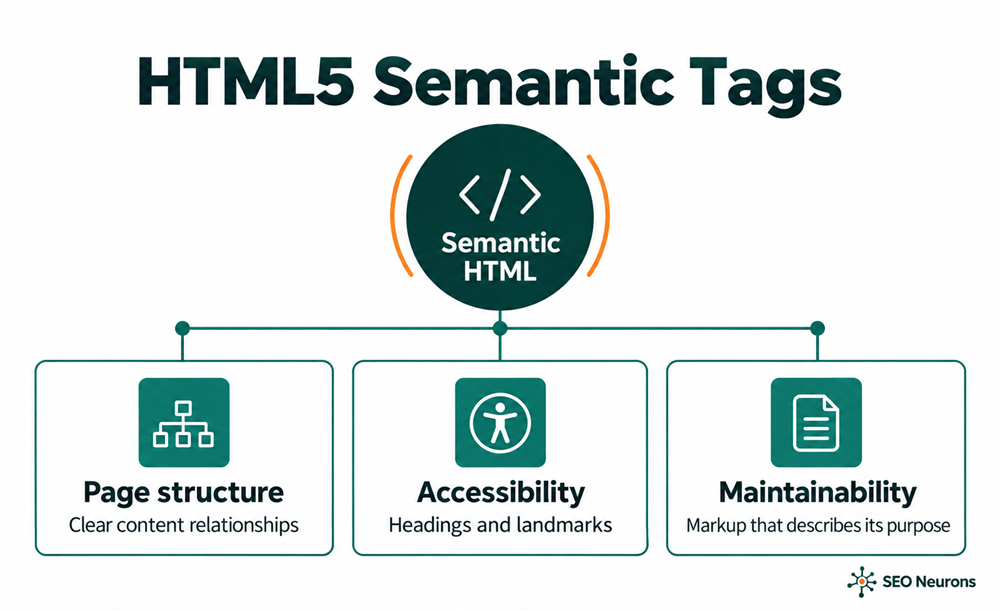
HTML describes meaning and relationships; CSS controls presentation. For example, choosing <aside> does not automatically place a box beside the article.
Why Do Semantics Matter for SEO?
Semantic HTML gives a page meaningful structure. Its clearest benefits are navigation that assistive technologies can identify and markup that is easier to understand and maintain. It belongs in a well-built website, but changing a <div> to an <article> is not a shortcut to higher rankings.
If you’re deciding which topics and questions the page should cover, our semantic SEO guide addresses that broader content strategy. It helps you plan the explanation and its supporting pages; semantic HTML gives that content an appropriate document structure.
Crawlability is a separate concern. For link discovery, use an <a> with a real href; placing a clickable <div> inside <main> does not give it the same link semantics. Google’s link guidance explains which links its crawlers can extract. Our internal linking guide explains how to connect those destinations usefully.
Search appearance is separate too. A <nav> containing breadcrumbs gives readers a navigation region; it does not create BreadcrumbList structured data. To make a page eligible for Google’s breadcrumb search feature, add the appropriate markup and follow its breadcrumb requirements. Our schema markup guide covers that implementation. Eligibility does not guarantee that Google will show the feature.
Featured snippets work differently: Google’s systems select them for a search query. There is no semantic element you can add to mark a page as a featured snippet.
Key Difference: Semantic vs Non-Semantic Tags
Choose an element according to the job its content performs:
| Question | Element | Example |
|---|---|---|
| Is this the page’s primary content? | <main> |
The content of a service page |
| Is this an independently meaningful item? | <article> |
A complete post or product review |
| Is this a distinct topic within a larger page? | <section> |
An installation section in a tutorial |
| Is this a major navigation block? | <nav> |
The main menu or article contents |
| Is this supporting content that can be considered separately? | <aside> |
A related background note |
| Does this introduce a page or content block? | <header> |
A title and byline |
| Is this information about a page or content block? | <footer> |
Author details or copyright |
| Is this a generic block container? | <div> |
A wrapper used for a CSS grid |
| Is this a generic inline container? | <span> |
A phrase targeted by styling or a script |
There is no need to replace every <div> or <span>. Use a semantic element when its meaning fits the content.
Here is a short outline for a standalone blog post. The later complete example adds metadata, a skip link, media, and a labelled form.
<header>
  <a href="/">SEO Neurons</a>
  <nav aria-label="Primary">
    <a href="/blog/">Blog</a>
  </nav>
</header>

<main>
  <article>
    <header>
      <h1>A practical guide to semantic HTML</h1>
    </header>
    <section>
      <h2>Choose elements by purpose</h2>
      <p>Explain the first topic here.</p>
    </section>
    <footer>
      <p>Written by Ashok Sihmar</p>
    </footer>
  </article>
</main>

<footer>
  <a href="/contact-us/">Contact SEO Neurons</a>
</footer>
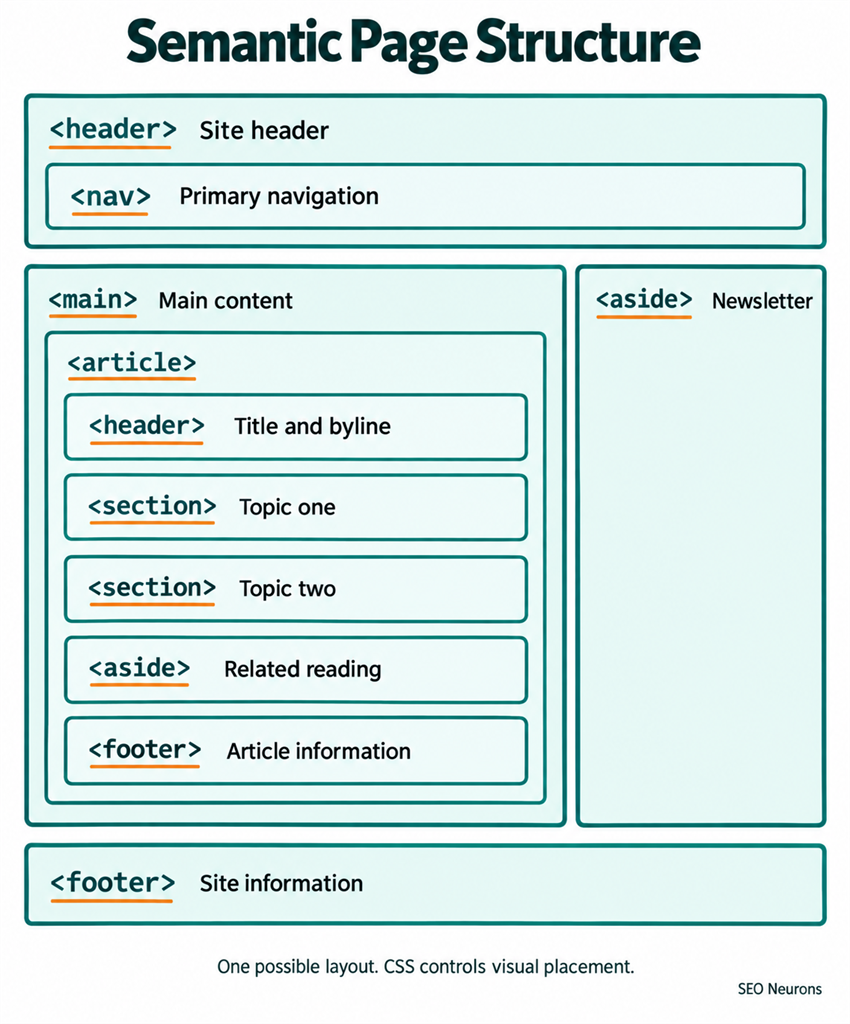
The article has its own header and footer inside <main>. The site header and footer remain outside the main content. Other page types can use a different arrangement.
Apply Semantic HTML to an Existing Theme
If you use Blogger or another theme-based platform, your theme already generates the document and its content wrappers. Adapt those templates rather than pasting the complete page example into a blog post. Adding a second <html>, <body>, or <main> around an entry can create invalid structure.
In Blogger, open Theme, then choose More → Edit HTML under My theme, as described in Blogger’s theme-editing instructions. Save a copy of your current theme before making changes.
Work through one content region at a time:
- Find the existing wrapper. Identify the template that outputs a complete post, including its title, byline, and body. A wrapper used only for a grid or spacing can stay a
<div>. - Change the element when its meaning fits. Keep the classes, content, and platform template expressions intact. Change both the opening and closing tag.
- Check the surrounding page. If the theme already provides the main content region, keep the post’s
<article>inside it rather than adding another<main>. - Preview the affected views. Check an individual post, the blog index, and any static page sharing that template. Inspect the rendered HTML and test the layout and keyboard navigation.
For example, suppose this existing wrapper contains a complete post:
<div class="post-content">
  <!-- Existing post title, byline, and body -->
</div>
You can change that wrapper to an <article> while retaining its contents and class:
<article class="post-content">
  <!-- Existing post title, byline, and body -->
</article>
The class name is illustrative; your theme may use a different one. Check CSS and scripts that select the old tag as well as its class. If you cannot identify the wrapper, inspect the rendered page first so you know which template needs attention.
The <main> Tag in HTML5
The <main> element identifies the page’s primary content: the post, product listing, contact form, or other content the visitor came to use.
When and Why to Use <main>
- Use one
<main>for a typical page. The HTML standard permits no more than one<main>without thehiddenattribute. Applications that retain inactive views must manage this explicitly. - Place it in a valid document hierarchy. A simple choice is directly inside
<body>or a<div>wrapper. Do not nest it inside another<main>,<article>,<aside>,<nav>,<header>, or<footer>. - Provide a main landmark. Assistive technologies can use it to help users reach the primary content.
<main> identifies a document region; it does not tell Google to ignore the rest of the page. See the HTML standard’s main-element rules.
Example of <main> in Use
Here’s how you might use the <main> tag in a simple layout:
<body>
<header>
<a href="/">My Website</a>
<nav aria-label="Primary">
<a href="/services/">Services</a>
</nav>
</header>
<main>
<h1>Web development services</h1>
<p>Explore our services, team, and approach.</p>
</main>
<aside aria-labelledby="news-title">
<h2 id="news-title">Latest news</h2>
<p>Company announcements and upcoming events.</p>
</aside>
<footer>
<p>© 2026 My Company</p>
</footer>
</body>Here, the service content belongs in <main>. The site header, general news, and site footer sit outside it. The page’s <h1> names the service; see our H1 tag guide for examples of choosing the main heading.
What Should Go Inside <main>?
<main> can contain articles, sections, figures, and information directly related to the page’s primary topic. An article inside it may have its own <header> and <footer>. Article-specific navigation or a supporting <aside> can also belong there.
Keep repeated site branding, global menus, and site-wide footer information outside <main>. For a sidebar, consider what the content relates to rather than where CSS positions it.
For example, a note explaining a term in the current article can sit inside <main>. A newsletter box repeated across the website usually belongs outside it. MDN’s main-element guidance.
The <article> Tag in HTML5
Use <article> for an independently meaningful composition, such as a complete blog post, news story, forum post, product review, recipe, or job listing. Ask whether the item would make sense if it were shared separately. A heading or a card-shaped design alone does not make something an article.
Can You Use Multiple <article> Tags?
Yes. A blog index can contain several independent article summaries. In this example, the listing page has its own <h1> outside the fragment, and each linked article title uses <h2>:
<article>
  <h2><a href="/blog/on-page-seo/header-tags/">Organizing content with headings</a></h2>
  <p>Learn how heading levels express topics and subtopics.</p>
</article>

<article>
  <h2><a href="/blog/internal-linking/">Planning useful internal links</a></h2>
  <p>Help visitors find related information across your website.</p>
</article>
Use the self-contained composition test to decide whether each item belongs in an <article>.
Should You Use <article> in a Sidebar?
A sidebar can contain an article when the content is independently meaningful. The following fictional product review is an example:
<aside aria-labelledby="review-title">
  <h2 id="review-title">Example product review</h2>
  <article>
    <h3>Compact keyboard review</h3>
    <p>Sample review: The keyboard is easy to carry, but it has no number pad.</p>
  </article>
</aside>
A short collection of related links normally needs a list, not a separate <article> for each link. Use <nav> when the collection forms a meaningful navigation block, and <div> when a generic wrapper is sufficient.
The <header> Tag in HTML5
A <header> introduces the page or a surrounding content block. A site header can contain branding and navigation; an article header can contain its title, byline, and publication date. You can use both on the same page:
<header>
  <a href="/">SEO Neurons</a>
  <nav aria-label="Primary">
    <a href="/blog/">Blog</a>
  </nav>
</header>

<main>
  <article>
    <header>
      <h1>Why semantic HTML matters</h1>
      <p>By Ashok Sihmar · <time datetime="2025-06-13">13 June 2025</time></p>
    </header>
    <p>Semantic elements describe the purpose of the content they contain.</p>
  </article>
</main>
The outer header introduces the website; the inner one introduces the article. A header nested inside an article does not become an additional page-level banner landmark. W3C’s page-region guidance explains that distinction.
Keep each header focused on the content it introduces. Include a heading when appropriate; a site header may instead use a linked logo and navigation. Use a <div> when you only need a styling wrapper.
What’s the Difference Between <header> and <head>?
| Element | Purpose | Examples |
|---|---|---|
<head> |
Document metadata and resource information | Page title, character encoding, meta description, stylesheets |
<header> |
Introductory content within the page | Branding, navigation, an article title, a byline |
The <head> contains information used by the browser and other software. Its <title> can appear in the browser tab and search results. A <header> belongs to the document body and introduces the page or a content block.
What is the <aside> Tag in HTML5?
<aside> represents content that is related to its surroundings but can be considered separately. Examples include a background note, a related-reading box, or a site-wide sidebar.
When Should You Use <aside>?
Use it for supporting material. If a warning, instruction, or summary is essential to understanding the article, keep it in the article’s main flow.
An aside can appear beside, above, or below other content. CSS determines its visual position; the element describes its relationship to the surrounding information.
Example: Blog Layout with <aside>
<main>
  <article>
    <h1>How to start a blog</h1>
    <p>Starting a blog is easier than ever. First, pick a topic you're passionate about...</p>
  </article>

  <aside>
    <h2>Popular Blogging Tools</h2>
    <ul>
      <li>WordPress</li>
      <li>Medium</li>
      <li>Ghost</li>
    </ul>
  </aside>
</main>
In this example, the <article> is the main content. The <aside> has related info (popular blogging tools), but it’s not part of the actual guide on how to start a blog. It’s extra help.
Another Common Example: Sidebar with Author Info
<aside aria-labelledby="author-heading">
  <h2 id="author-heading">About the author</h2>
  <p>Ashok Sihmar writes about technical SEO and web development.</p>
</aside>
This box provides additional author information. The article’s byline can still appear in its header or footer.
Where Can You Place <aside>?
- Inside an article: supporting information specifically related to that article.
- Inside
<main>beside an article: supporting content that belongs to the current page’s primary topic. - Outside
<main>: a repeated site-wide sidebar, such as general resources or a newsletter signup.
Choose the location that reflects the content relationship, then use CSS for the layout. If several asides appear, give them useful labels so readers can distinguish their purposes.
What is the <footer> Tag?
<footer> contains information about the page or the nearest ancestor sectioning element, such as an article or section. Common examples include author information, copyright, and related links.
Where Can You Use <footer>?
- Use a page footer for information about the website or document.
- Use an article footer for information about that article, such as its author or related resources.
A footer commonly appears after the content it describes, but it does not have to. Its meaning is determined by the document structure, not its position on the screen. HTML footer definition.
Contact details, legal links, and copyright commonly belong in a site footer. A post’s author details and related resources can belong in its article footer.
Example: Page-Level Footer
<footer>
<p>© 2026 SEO Neurons</p>
<p><a href="mailto:contact@seoneurons.com">Contact SEO Neurons</a></p>
<p><a href="/privacy-policy/">Privacy policy</a></p>
</footer>A larger footer menu can use <nav>. A small set of footer links does not require it.
Example: Footer Inside an Article
<article>
  <h1>How to Improve Your Page Speed</h1>
  <p>Optimizing images, reducing server response time, and minifying CSS are just a few ways...</p>

  <footer>
    <p>Written by Ashok Sihmar</p>
    <p>Published on <time datetime="2025-06-13">13 June 2025</time></p>
  </footer>
</article>
In this example, the footer gives extra information specific to that article.
What is the <nav> Tag?
<nav> identifies a major block of links to other pages or to locations within the current page. Common examples include the primary menu, breadcrumbs, and an article’s table of contents.
Why Is <nav> Useful?
It makes navigation identifiable in the document structure. Assistive technologies can expose it as a navigation landmark, helping users find or bypass groups of links. MDN’s nav reference.
Where is <nav> Commonly Used?
You can use it in various parts of your site, such as:
- At the top of the page as the main menu
- In a footer when the links form a substantial navigation menu
- As a breadcrumb trail (like Home > Blog > Article)
- In the sidebar with links to popular categories or pages
Example: Primary Navigation
<nav aria-label="Primary">
  <ul>
    <li><a href="/">Home</a></li>
    <li><a href="/about-us/">About</a></li>
    <li><a href="/services/">Services</a></li>
    <li><a href="/contact-us/">Contact</a></li>
  </ul>
</nav>
Example: Breadcrumb Navigation
<nav aria-label="Breadcrumb">
  <ol>
    <li><a href="/">Home</a></li>
    <li><a href="/blog/">Blog</a></li>
    <li><span aria-current="page">HTML5 page structure</span></li>
  </ol>
</nav>
These breadcrumbs describe the user’s location. Add BreadcrumbList structured data separately when appropriate; the navigation element does not create it.
Do All Links Need to Go in <nav>?
No. An inline source link or a short set of legal links can remain in normal content. An article’s table of contents can use <nav> because it is a navigation block within that page.
Can You Use Multiple <nav> Elements?
Yes. Distinguish navigation regions with different purposes using an accessible name. Use aria-label when there is no visible title, or aria-labelledby to refer to an existing heading:
<nav aria-labelledby="contents-heading">
  <h2 id="contents-heading">On this page</h2>
  <ol>
    <li><a href="#choosing-elements">Choosing elements</a></li>
    <li><a href="#checking-markup">Checking markup</a></li>
  </ol>
</nav>
In this example, the page must contain elements with the IDs choosing-elements and checking-markup. Use descriptive link text and keep repeated navigation consistent. W3C’s guidance on labelling regions.
What is the <section> Element?
<section> groups content about a distinct topic within a document or application. It usually has a heading that explains the topic.
When Should You Use <section>?
Use it for a meaningful part of the page, such as installation instructions, service details, or contact information. A section can contain several paragraphs, examples, lists, and other relevant content.
Choose <article> when the whole composition is independently meaningful. Choose <div> when the wrapper exists only for layout or scripting. A heading and a paragraph do not automatically need an extra section wrapper.
Should Every Section Have a Heading?
A visible heading is a useful default for content sections. It is guidance rather than a rule that every possible <section> must contain one. Where a section should be exposed as a named region, associate it with a useful heading using aria-labelledby. Avoid creating named regions for every small block. MDN’s section reference.
Example: Sections on a Home Page
<section>
  <h2>Our Services</h2>
  <p>We offer SEO, PPC, Social Media Management, and Website Design.</p>
</section>

<section>
  <h2>About Us</h2>
  <p>SEO Neurons is a digital agency focused on helping businesses grow online.</p>
</section>

<section>
  <h2>Contact</h2>
  <p>Email us at contact@seoneurons.com or call +91 9205427600.</p>
</section>
Each section has its own heading and content. This makes it easier to read and navigate, both for users and search engines.
Example Inside an <article> or <main>
<main>
  <article>
    <header>
      <h1>How to Get Started with Digital Marketing</h1>
    </header>

    <section>
      <h2>Step 1: Understand Your Audience</h2>
      <p>Knowing who you are targeting is the first step to success...</p>
    </section>

    <section>
      <h2>Step 2: Choose the Right Platforms</h2>
      <p>Each marketing channel works differently. Select the one that fits your goals...</p>
    </section>

    <footer>
      <p>Written by Ashok Sihmar, June 13, 2025</p>
    </footer>
  </article>
</main>
Here, each <section> represents a specific step or part of the article topic.
Best Practices
- Give content sections descriptive headings where appropriate.
- Choose heading levels from the surrounding hierarchy.
- Use
<div>for a generic layout or scripting wrapper. - Use
<article>when the complete composition is independently meaningful.
Other Semantic Elements You Should Know
These elements can make dates, media, contact information, and other content more explicit:
| Element | Purpose and practical note |
|---|---|
<time> |
A date or time; use datetime when a machine-readable value is needed. |
<details> and <summary> |
A native disclosure widget and its label; useful for optional explanations. |
<mark> |
Content highlighted because it is relevant in the current context, such as a search match. |
<address> |
Contact information for the relevant article or page author/owner, rather than any postal address. |
<data> |
Associates text with a machine-readable value; it does not automatically create schema markup. |
<output> |
The result of a calculation or user action. |
<abbr> |
An abbreviation; explain unfamiliar terms in visible text on first use. |
<cite> |
The title of a cited work, such as a book or article. |
<figure> and <figcaption> |
Self-contained content with an optional caption, including diagrams, images, or code examples. |
Choose these elements when their meaning matches the content you are marking up.
Heading Hierarchy Within Semantic HTML
For a typical standalone article, use one clear <h1> for the article title, <h2> for its main topics, and <h3> for subtopics. Choose levels according to the content relationships, and use CSS to change their appearance.
<article>
  <h1>Planning a website</h1>
  <section>
    <h2>Define the content</h2>
    <section>
      <h3>List the essential pages</h3>
      <p>Identify the pages your visitors need.</p>
    </section>
  </section>
  <section>
    <h2>Review the navigation</h2>
    <p>Check how visitors move between those pages.</p>
  </section>
</article>
For ordinary markup, wrapping a heading in <section> does not automatically choose an appropriate heading level. Set the levels deliberately. Avoid skipping a level when opening a subsection; returning from a subsection to a higher-level topic is normal. W3C’s heading guidance.
This is a readability and accessibility recommendation, not a rule that an extra <h1> automatically causes a Google penalty. See our guide to structuring content with heading tags.
Practical Accessibility Patterns
Add a Skip Link
Place a skip link before repeated navigation and point it to the main content. The following example keeps the link visible and makes the target focusable without adding it to the normal Tab sequence:
<a href="#main-content">Skip to main content</a>
<header><!-- Site branding and navigation --></header>
<main id="main-content" tabindex="-1">
  <h1>Page title</h1>
  <p>Main content starts here.</p>
</main>
Test it using Tab and Enter. Activating it should move focus to the main content, and subsequent keyboard navigation should continue from there. If you hide the link visually, it must become visible when focused. W3C’s skip-link technique.
Give Form Controls Clear Labels
<label for="contact-email">Email address</label>
<input id="contact-email" name="email" type="email" autocomplete="email">
Keep the label visible and make its for value match the input’s id. A placeholder can provide an example value, but should not be the only instruction identifying the field. Use native controls such as <button> for actions. W3C’s form-label guidance.
HTML Foundations for Search and Browsers
Start with a Clear Document Head
<!doctype html>
<html lang="en">
<head>
  <meta charset="utf-8">
  <meta name="viewport" content="width=device-width, initial-scale=1">
  <title>Web development services | Example Studio</title>
  <meta name="description" content="Explore Example Studio's website development services and project process.">
  <link rel="canonical" href="https://example.com/services/">
</head>
<body>
  <main><h1>Web development services</h1></main>
</body>
</html>
Replace the example title, description, language, and canonical URL with values appropriate to the real page. Keep metadata inside a valid <head> and avoid conflicting canonical declarations. The doctype enables standards mode; lang identifies the document language for software such as screen readers. Google’s metadata guidance.
Use Links for Navigation
<a href="/services/">Explore our services</a>A normal anchor with an href gives users a link destination and lets crawlers follow it. A click handler on a generic element does not provide the same link semantics. Use descriptive link text and verify the destination exists.
If navigation or page content is added by JavaScript, the JavaScript SEO guide explains how to check what search engines can render.
Image Markup and Page Performance
Describe the information an image contributes using appropriate alternative text. Use alt="" for a purely decorative image. A complex diagram may also need an explanation in the surrounding text. W3C’s alt-text decision tree.
For an illustration farther down a page, markup can look like this:
<figure>
  <img src="/images/example-page-layout.webp"
       alt="An article and a related-information sidebar inside the main content area."
       width="1000" height="600"
       loading="lazy" decoding="async">
  <figcaption>One way to arrange related content on an article page.</figcaption>
</figure>
Replace the example image path and dimensions with the real asset. Width and height let the browser reserve space. When you provide multiple image sizes, use srcset and sizes to help the browser choose an appropriate file.
Do not lazy-load the image that is likely to be your Largest Contentful Paint element. Evaluate its loading priority using measurements rather than applying high priority to every image. Google’s LCP guidance.
See our guides to Largest Contentful Paint and Cumulative Layout Shift for more context.
Common Semantic HTML Mistakes
| Pattern to review | Better approach |
|---|---|
<section class="grid"> used only to arrange cards |
Use <div class="grid"> when the wrapper has no thematic purpose. |
A brand name at <h1> on every standalone article |
In the article pattern shown here, use linked branding and make the article title the main heading. |
| An email field identified only by its placeholder | Add a visible label associated with the input. |
Important navigation implemented as a clickable <div> |
Use an <a> with an href. |
| Different navigation menus with indistinguishable names | Give each distinct navigation purpose a useful accessible name. |
| A heading level selected to obtain smaller text | Choose the level from the content hierarchy and style the text with CSS. |
Every image set to loading="lazy" |
Handle the main LCP image separately from images farther down the page. |
Complete HTML5 Semantic Page Structure
This example shows a standalone article with site navigation, a main heading, sections, related content, an article footer, and a labelled newsletter form. Adapt the metadata, paths, image, and content for your own site. The newsletter action is an illustrative endpoint: connect it to your actual subscription handler before using the form.
<!doctype html>
<html lang="en">
<head>
<meta charset="utf-8">
<meta name="viewport" content="width=device-width, initial-scale=1">
<title>HTML5 page structure | SEO Neurons</title>
<meta name="description" content="A practical example of semantic HTML page structure and accessible navigation.">
<link rel="canonical" href="https://seoneurons.com/blog/technical-seo/html5-best-practices/">
<style>
body {
max-width: 70rem;
margin: 0 auto;
padding: 1rem;
font-family: system-ui, sans-serif;
line-height: 1.6;
}
img { max-width: 100%; height: auto; }
:focus-visible { outline: 3px solid #09665d; outline-offset: 3px; }
</style>
</head>
<body>
<a href="#main-content">Skip to main content</a>
<header>
<a href="/">SEO Neurons</a>
<nav aria-label="Primary">
<ul>
<li><a href="/services/">Services</a></li>
<li><a href="/blog/">Blog</a></li>
<li><a href="/contact-us/">Contact</a></li>
</ul>
</nav>
</header>
<main id="main-content" tabindex="-1">
<article>
<header>
<h1>HTML5 page structure</h1>
<p>By Ashok Sihmar</p>
<p>Published <time datetime="2019-10-07">7 October 2019</time></p>
</header>
<section>
<h2>Choose elements by purpose</h2>
<p>Identify the primary content, independent compositions, and supporting information before choosing their elements.</p>
</section>
<figure>
<img src="/blog/images/2019/10/html5-page-structure.png"
alt="Semantic HTML supports meaningful structure, accessible navigation, and maintainable code."
width="1000" height="611" decoding="async">
<figcaption>How semantic HTML supports a readable document structure.</figcaption>
</figure>
<section>
<h2>Make navigation understandable</h2>
<p>Use meaningful links, logical heading levels, and clear labels for navigation regions.</p>
</section>
<aside aria-labelledby="related-heading">
<h2 id="related-heading">Related reading</h2>
<p><a href="/blog/on-page-seo/header-tags/">Structuring content with heading tags</a></p>
</aside>
<footer>
<p><a href="/blog/author/ashoksihmar/">About Ashok Sihmar</a></p>
</footer>
</article>
</main>
<aside aria-labelledby="newsletter-heading">
<h2 id="newsletter-heading">Subscribe to the newsletter</h2>
<!-- Replace this illustrative action with your subscription handler. -->
<form action="/newsletter/subscribe/" method="post">
<label for="newsletter-email">Email address</label>
<input id="newsletter-email" name="email" type="email"
autocomplete="email" required>
<button type="submit">Subscribe</button>
</form>
</aside>
<footer>
<address>
<a href="mailto:contact@seoneurons.com">Contact SEO Neurons</a>
</address>
<p><a href="/privacy-policy/">Privacy policy</a></p>
<p>© 2026 SEO Neurons</p>
</footer>
</body>
</html>What This Layout Demonstrates
- A visible skip link targets the primary content.
- The site header and footer surround the main content; the article has its own header and footer inside it.
- The article title is
<h1>and its sections use<h2>. - Distinct supporting regions have descriptive labels.
- The image has text alternative and dimensions, and is not lazy-loaded in this introductory position.
- The newsletter field has a visible label, a submission name, and email autocomplete.
- The short page footer uses ordinary links without an unnecessary extra section wrapper.
This is an article-page example. A service page or application screen can use <main> and appropriately chosen content elements without requiring an <article> wrapper.
How to Check Your HTML Structure
- Check markup: run the page through the Nu HTML Checker and investigate errors such as invalid nesting or duplicate IDs.
- Inspect the rendered document: use browser developer tools to check the HTML produced by your templates and scripts. Confirm the main content and important links are present.
- Review headings and regions: check that the heading hierarchy describes the content and that different navigation or supporting regions are distinguishable.
- Test the keyboard: activate the skip link, follow navigation links, and move through form controls. Check that focus is visible and proceeds in a useful order.
- Check text alternatives and labels: confirm that images and form controls convey the information needed to use the page.
- Test structured data separately: if you have added supported structured data, use Google’s Rich Results Test. Passing this test does not guarantee a rich result.
Automated checks are useful, but they do not replace reviewing the content or trying the page with a keyboard and relevant assistive technology.
For example, if you find two visible <main> elements after editing a theme, check whether both the page template and post template create one. Keep the page’s primary region as <main> and use an appropriate inner element, such as <article>, for the complete post. Inspect the rendered page again to confirm the duplicate is gone.
Frequently Asked Questions
Will Changing an Element Affect My Theme’s Design?
It can. A class selector such as .post-content still matches an <article> with that class, but div.post-content does not. Check selectors and scripts that depend on the old tag, then preview the page at desktop and mobile widths. Preserve the intended layout while changing the element’s meaning.
Does <article> Add Article Schema?
No. Semantic elements and structured data are separate. Add appropriate structured data explicitly when it serves the page, and test it separately.
Final Words
Start with the content relationships, choose elements that describe them, and give the page a clear heading hierarchy. Then check navigation, labels, and the rendered result.
Use the complete example as a starting point and adapt it to your page. Semantic HTML supports a usable document structure; useful content, crawlable links, and appropriate metadata remain part of the wider work of SEO.
JOIN THE CONVERSATION
Comments
Have a question or something to add? Comments are moderated and appear here only after approval.
JavaScript is required to submit a comment. Published comments above remain available to read.
9 published comments, including 2 replies. Threads shown oldest first.
In reply to Noman Rana
In reply to mahrukh Imran