
THE SHORT VERSION
What you’ll take away.
- Compare the main document's HTTP response with what the page actually shows.
- A 404 or 410 can be correct when a page is gone and has no suitable replacement.
- A soft 404 can happen when a URL returns 200 OK but displays an error or has little usable content.
- For repeated 429 or 5xx responses, trace the affected URLs, timing, and layer that returned the error.
- Verify the response and content after a fix, then check Google’s recorded result after it recrawls.
A product link opens a page that says “Product not found,” yet the server sends 200 OK. The browser displays the missing-page message, and Google may classify the URL as a soft 404. The right fix depends on whether the product page should still exist.
When a URL fails, compare the result you expect with the HTTP response and the content that appears on the page. That comparison tells you whether to fix a link, restore content, redirect the URL, or investigate an access or server problem.
1. Check the response and what the page shows
Start with one affected URL and write down what should happen when a visitor opens it. If Search Console reported the issue, copy the exact address, including any query parameters. Open it while signed out so an existing session cannot hide an access problem on a public page.
- Open your browser’s developer tools and select Network. In Chrome, enable Preserve log so you can see requests across redirects. Enable Disable cache while DevTools is open and load the address.
- Find the main page request. Chrome labels it document. Record the status and, for a redirect, the next address in the
Locationheader. Follow the requests through to the final URL and its status. - Look at the page after it loads. Check whether the expected content appears, an error message replaces it, or the main section stays empty. If the page depends on JavaScript to load its content, check whether a script or data request failed.
A failing image or data request has its own status code. Record it separately from the page’s status. A data request can fail while the main document still returns 200 OK, leaving visitors with an empty page. That distinction matters when diagnosing JavaScript rendering problems.
| What you observe | What to check next |
|---|---|
The document returns 404 or 410 |
Confirm whether the URL should still work, has moved, or was deliberately removed. |
The document returns 200 and shows an error or an empty main section |
Check routing and the requests that supply the content. |
| The URL redirects | Check the final address, response, and relevance of the destination. |
A public page returns 401 or 403 |
Check whether login, permissions, or a security rule is blocking the request. |
The document returns 429 or 5xx |
Record the time and look for a pattern across URLs and requests. |
2. Decide whether a 404 or 410 needs a fix
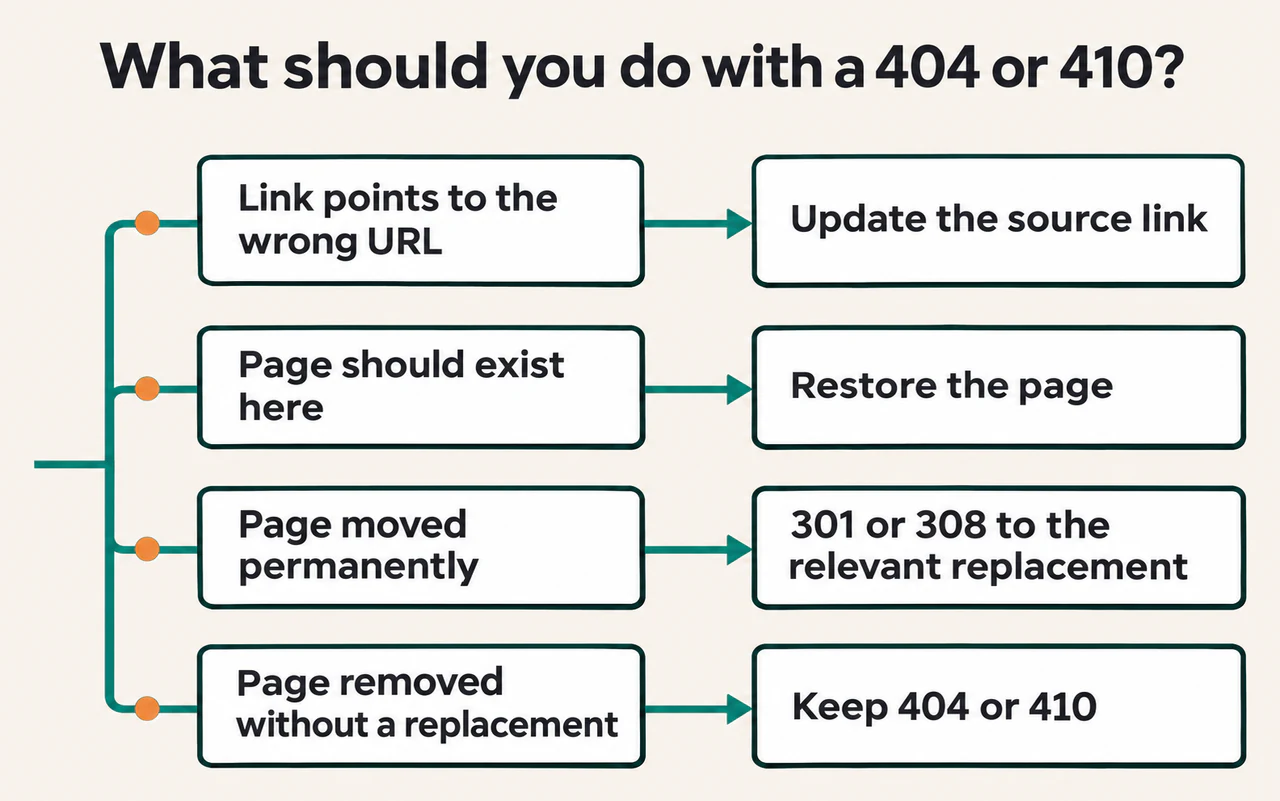
A 404 Not Found means the server could not find the requested resource. A 410 Gone signals that the resource is no longer available and the removal is likely permanent. To decide what to change, look at where the URL came from and what a visitor should find there.
- A link points to the wrong address. Update the link to the correct live page. If several pages share the same broken link, check whether a navigation menu, listing, or template supplies it.
- The page should still exist at this address. Restore the page or correct the routing problem. Verify that the original URL returns
200 OKand serves the intended content. - The page moved permanently. Use a permanent redirect to a destination that serves the same purpose, then update internal links to point directly there.
- The page was removed without a suitable replacement. Keep a genuine
404or410response. Remove links to it where they promise content that is gone, and remove the URL from the XML sitemap if it is listed there. A helpful error page can still offer navigation while returning the missing-page status.
The source of a bad link and the missing URL can need separate fixes. A deliberately removed page can return the correct status while an old menu link still sends people there. Fix the menu even when the response itself is correct.
If you need to find those links across a section, crawl it with link capture enabled in SEO Neurons Spider. Select the failing destination and review its inlinks, the source pages the crawl found linking to it. Check whether the links come from a shared menu or from individual articles so you can change them in the right place. Use JavaScript rendering if scripts create the links you need to inspect. The results cover links found within the crawl’s scope.
3. Find out why Google sees a soft 404
A soft 404 is Google’s assessment that a URL behaves like a missing page. It can happen when the server responds successfully but delivers an error message or a page with little usable main content. It can also happen when a missing URL redirects to an unrelated destination.
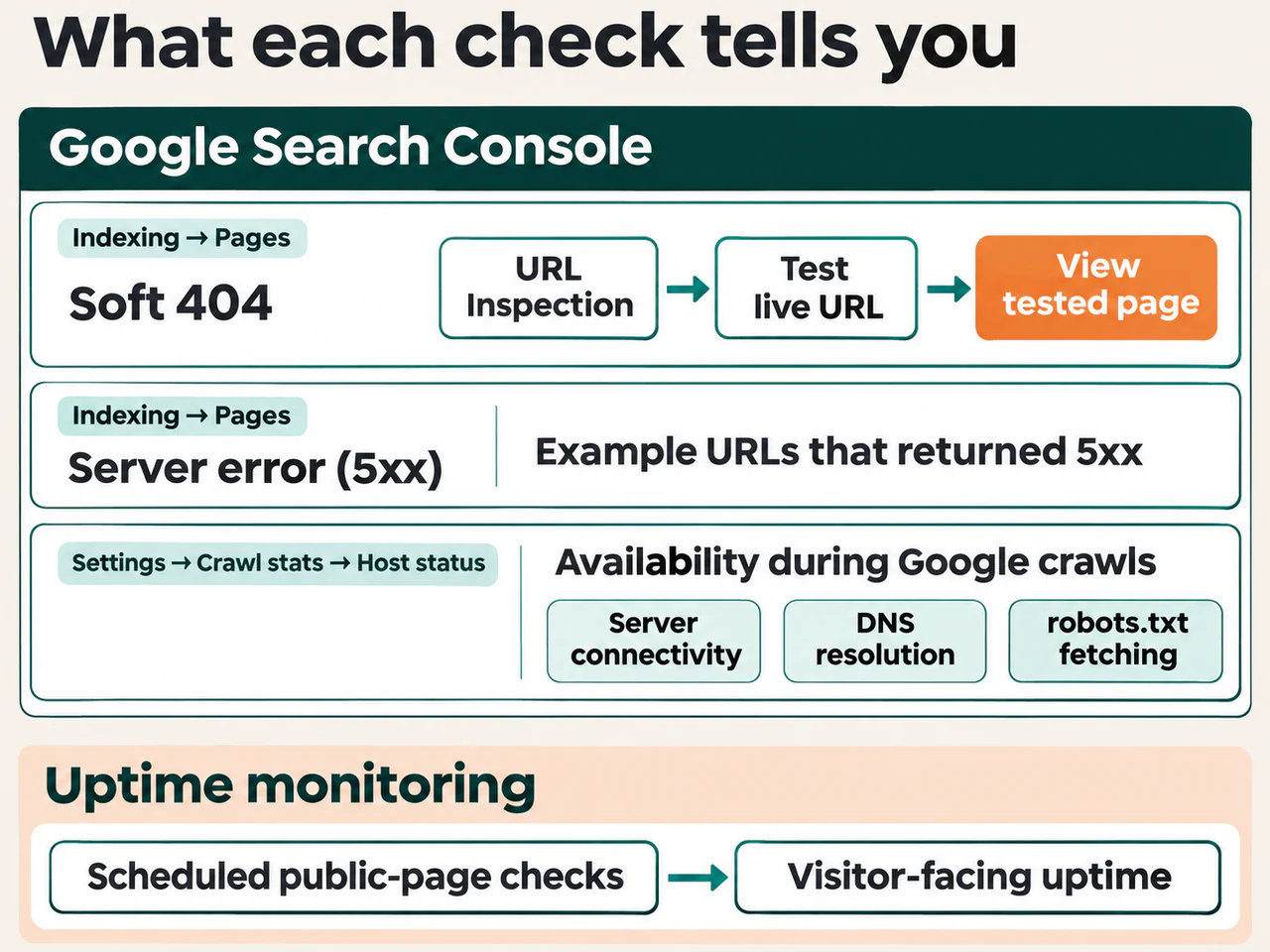
In Google Search Console, open Indexing → Pages. Under Why pages aren’t indexed, select Soft 404 and open an example URL in URL Inspection. Check the last crawl date, then choose Test live URL. Under View tested page, check the rendered screenshot and failed resources when available. Google’s Page indexing report guide
For the product URL at the start of this guide, the page and the HTTP response give different signals. If the product page is meant to stay available, trace why its details failed to load. Check the route, the product record, and any failed request for product data. Once the cause is fixed, the URL should return 200 OK and show the expected product information. If the product page was permanently removed without a replacement, serve a genuine missing-page response instead.
If your browser shows the expected content, compare it with the live test. Timing, caching, or access conditions can affect what each request receives. The live test shows what Google’s inspection tool can fetch at that moment. The recorded result updates after Google revisits and processes the URL.
When several URLs share the problem, test a working page, a failing page, and a known missing URL from the same part of the site. This helps you tell whether the issue comes from a shared route or template and whether the fix preserves the correct behavior for pages that really are gone.
4. Trace repeated 429 and server errors
A 429 Too Many Requests response signals that a request limit was reached. A 500 usually points to an internal server failure. A 502 or 504 often comes from a gateway that received an invalid response or timed out while waiting for a server behind it. A 503 indicates temporary unavailability. The status is a starting point for finding the cause.
In Search Console, Indexing → Pages → Server error (5xx) lists example URLs where Google received a server error when requesting the page. One product page can return 500 while the rest of the site stays reachable. Inspect an affected URL and run a live test to see whether the error still occurs.
For a wider pattern, open Settings → Crawl stats → Host status on a domain or root-level property. Check Server connectivity, DNS resolution, and robots.txt fetching for availability problems Google encountered during crawling. The crawl responses table shows how often Google received different responses, including server errors. To measure visitor-facing uptime over time, use monitoring that checks public pages at regular intervals. Google’s Crawl Stats report guide
Record the time and time zone, the URL, the status, and any request ID shown in the headers. Check a few affected URLs and one known working URL. If the issue is intermittent, compare results at different times or check whether errors began after a deploy or traffic spike.
- A single section fails. Look for a shared template, backend service, or data source used by those URLs.
- Several unrelated sections fail together. Check the hosting service, application server, and the content delivery network (CDN) if the site uses one. Compare their logs for the same time and request ID.
- Only a crawler or a burst of requests triggers the error. Check which layer applied the rate limit and compare the crawl history with server or CDN logs to see which requests were affected.
Google may temporarily slow crawling when it receives 429 or 5xx responses. If important URLs keep returning server errors, Google can eventually drop them from its index. Prioritize recurring failures on pages that should be available.
5. Verify the fix on the site and in Search Console
Repeat the original check on the exact failing URL. Confirm the expected status, final destination if it redirects, and visible content. If a shared template or server rule changed, test another affected URL and a working URL from the same section. For a broken internal link, open its source page and confirm that the link now leads to the intended destination.
For a public page you restored, use a live URL Inspection test to check current access. Review the recorded crawl later to see whether Google has revisited it. If it still returns the expected content and status but remains crawled and currently not indexed, continue with indexing checks.
During a technical SEO audit, record the expected result, the original evidence, what changed, and the date you retested. This gives you a way to spot recurring failures and confirm which ones were resolved.
JOIN THE CONVERSATION
Comments
Have a question or something to add? Comments are moderated and appear here only after approval.
JavaScript is required to submit a comment. Published comments above remain available to read.
No approved comments yet. Be the first to join the conversation.