
THE SHORT VERSION
What you’ll take away.
- An orphan page has no incoming internal links from other pages on the website.
- Compare a list of known pages with pages reached by following internal links.
- A missing crawl result is a clue: check crawl settings, URL versions, and the live page before deciding.
- Restore useful pages through relevant articles, categories, or navigation; assess outdated pages separately.
- Verify the repair by crawling from the home page again without supplying the orphan URL as a starting point.
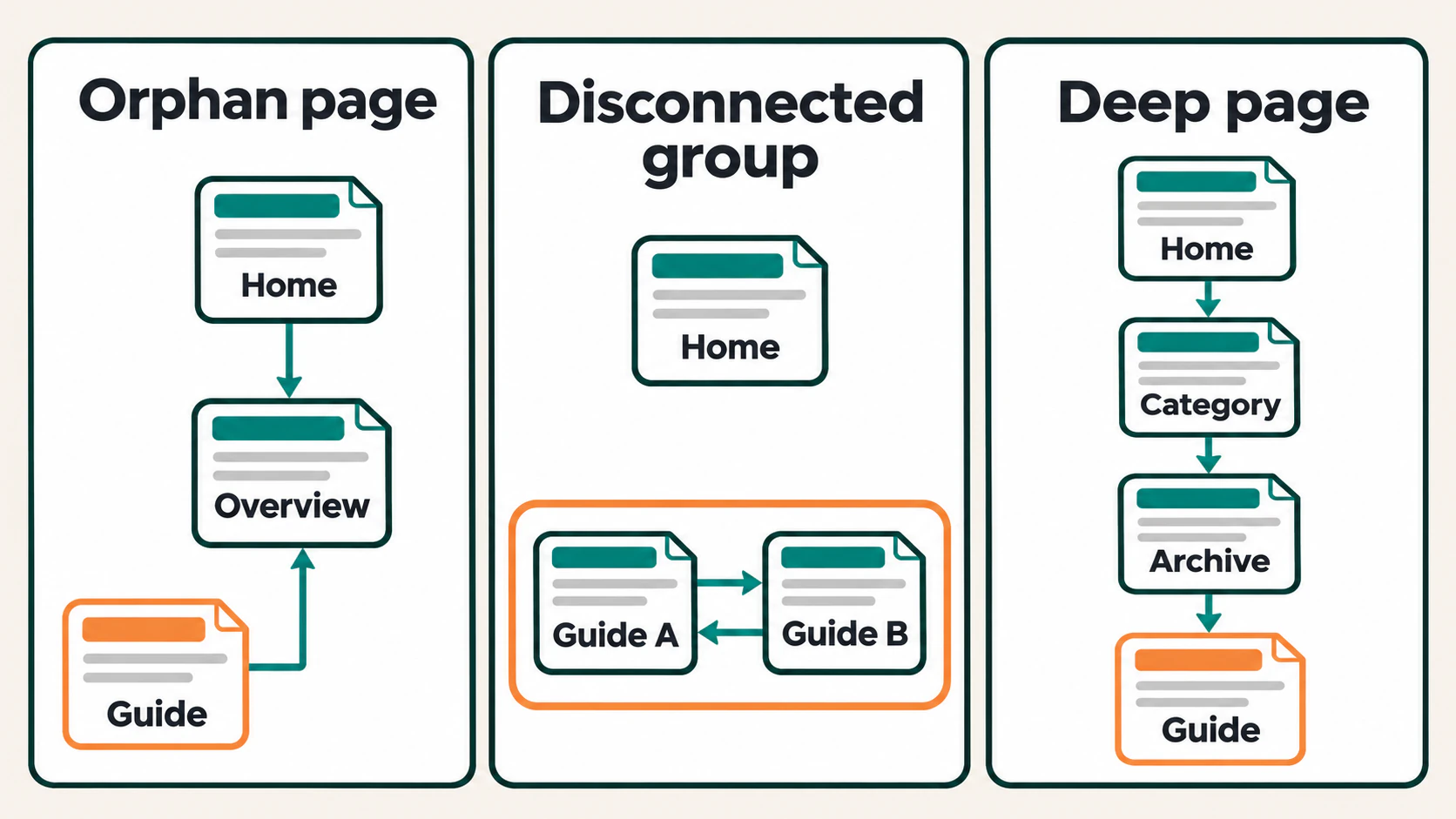
An orphan page is a page on your website with no incoming internal links from other pages on the site. The page may still work if someone opens its address directly, but there is no internal link leading to it.
Imagine publishing a helpful guide and sharing it in an email. People with that email can open it. Later, someone browsing your website looks through the menus and related articles but cannot find a route to the guide. The content exists; the connection is missing.
To find these pages, compare pages you know exist with pages reachable by following your website’s links. Then check each gap before deciding whether to add a link, combine content, or remove an outdated page.
Why orphan pages matter
Internal links help visitors discover useful content while browsing. They also give search engines routes to other pages and context about how those pages relate.
Google’s link guidance recommends giving each important page an incoming link from at least one other page on your website. The surrounding explanation should make that connection useful to the reader.
An orphan page can still be discovered through a sitemap, an external link, or a link that existed previously. It may even be indexed and receive search traffic. Being orphaned does not automatically mean that Google has never seen it.
The practical problem is that visitors browsing your site have no linked route to that page. An important guide, service page, or product can become difficult to find even though it remains available.
Repairing that route does not guarantee higher rankings. It makes the content accessible through the website’s structure and addresses a specific linking problem.
Incoming links and outgoing links are different
A page can link to five other articles and still be an orphan. Those are outgoing links: they lead away from it.
What it needs is an incoming internal link from another page. If your plant-care overview links to your yellow-leaves guide, that gives visitors a way into the guide. Adding a link from the guide back to the overview does not create the same route.
A link from a page to itself does not solve this problem either.
Orphan pages, disconnected groups, and deep pages
Sometimes two or three articles link to one another, but nothing in the main website links into that group. These pages have incoming links, yet the group is still disconnected. Include it in the same audit because visitors cannot reach it through the main site.
A deep page is different. It is reachable, but someone may need to follow many links to get there. Check whether an important page deserves a more direct route; there is no universal number of clicks that suits every website.
A missing Google search result is also a separate observation. It does not establish whether a page has internal links.
How pages become orphaned
Orphan pages often appear after an ordinary publishing or design change:
- A new article goes live without a link from an existing article, category, or resource page.
- A category is removed, leaving some older posts without a route from the remaining pages.
- A redesign replaces a menu or related-content section that previously linked to the page.
- An older article drops off the first archive page, and the links to later archive pages do not work.
- A product disappears from its category listing while its individual page stays live.
- A campaign ends and its navigation links are removed, but the landing page remains available.
Some pages only appear orphaned because a crawler cannot see the website’s links. For example, a product list may depend on JavaScript, the code used to add interactive features. That needs investigation before you label the products as unlinked.
1. Build a list of pages that may exist
A website crawler is a tool that visits pages and follows links to discover more pages. If you give it only your home page, a genuinely unlinked page may never enter its results.
Start with an independent list of website addresses, also called URLs. Combine the sources you can access:
| Source | What it contributes | What it can miss or include |
|---|---|---|
| Your publishing system | Published articles, pages, products, and other content you manage. | Custom landing pages or content stored in another system may be absent. |
| XML sitemaps | URLs your website lists for search engines. | A sitemap may be incomplete or contain outdated addresses. |
| Search Console | Page addresses appearing in search and indexing reports. | Reports have limits and do not provide a complete inventory of the website. |
| Analytics | Addresses visited during the selected reporting period. | Pages with no recorded visits will be missing; old URLs may remain. |
| Server logs, if available | Addresses requested by visitors or bots. | Requests can include deleted pages, errors, and addresses that never contained useful content. |
For a small WordPress site, your lists of published posts and pages are a useful starting point. Include products or other content types if the site uses them. On Blogger, check both posts and standalone pages. Look separately for campaign pages hosted outside the main publishing system.
Keep a note of where each URL came from and when you collected it. An address in last year’s analytics is evidence of a past visit, rather than proof that the page still exists today.
You do not need every data source to begin. Start with what you have, and record the gaps. A sitemap-only check cannot establish that you have found every orphan page.
2. Crawl the website by following internal links
Run a crawl starting from the home page. Its purpose is to record which pages can be reached through links in the current website.
Before starting, check the crawler’s settings:
- Include the parts of the website you intend to audit. A crawl limited to
/blog/cannot assess links from the rest of the website. - Allow it to follow the site’s internal links and finish the crawl. A page limit, an excluded folder, or a stopped crawl can leave valid pages out.
- Check whether the tool needs JavaScript rendering to see the site’s navigation. Rendering means running the page’s code to build what a visitor sees.
- Keep URLs supplied by sitemaps, uploaded lists, or connected reports distinguishable from URLs discovered through internal links.
That last point matters. A crawler can visit a page because you supplied its address. Seeing the page in the results then proves that the tool visited it, not that another page links to it.
Some tools combine several discovery sources and provide an orphan-page report. Check how that report distinguishes link discovery from imported addresses. Otherwise, save a separate export of the pages reached through the home-page crawl.
Also review crawl errors. If the tool was blocked from opening an entire category, its missing articles need a closer check before you call them orphans.
For a very small site, you can check the routes manually. Open the home page and follow its links to each published page. Pasting a destination into the address bar or opening it from the editor does not demonstrate a linked route.
3. Compare known URLs with reachable pages
You now have two lists:
- List A: URLs collected from your publishing system and other sources.
- List B: URLs reached by following internal links from the home page.
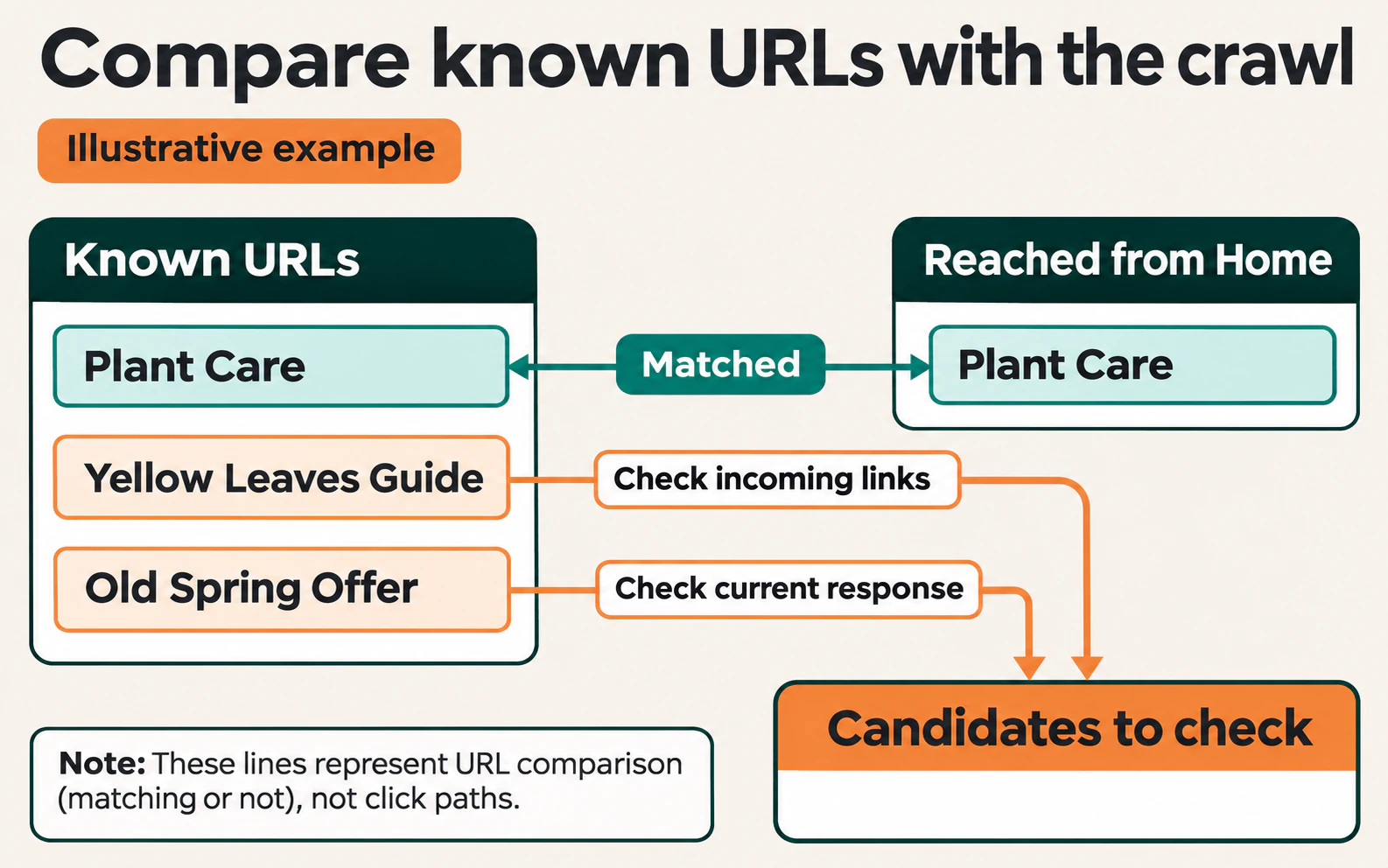
Find the addresses in List A that are absent from List B. These are candidates to investigate, not confirmed problems yet.
For a small site, put one URL per row in a spreadsheet and add a column recording whether it appears in the crawl. For a larger site, use your crawler’s comparison feature or ask a developer to compare the two exports.
For example, suppose a gardening website produces these results:
| Page | Known from | Reached through internal links? |
|---|---|---|
/guides/plant-care/ |
Publishing system and sitemap | Yes |
/guides/yellow-leaves/ |
Publishing system and Search Console | No |
/offers/spring-sale-2023/ |
Older analytics data | No |
The yellow-leaves guide and old sale address both need checking. They may need different actions: one could be a useful orphan page, while the other could already have been removed.
Compare the right version of each address
Two lists may use different addresses for the same destination. One might contain an old URL that redirects, while the other contains the current URL.
Check HTTP and HTTPS, the website hostname, redirects, and trailing slashes. Do not automatically remove every part after a question mark: ?page=2, for example, may identify a different page of results.
Keep the original addresses while recording their current destinations. Where several URLs show equivalent content, check the preferred canonical URL before deciding which one needs internal links. A canonical declaration expresses a preferred address; it does not provide a navigational link for visitors.
4. Confirm what is missing
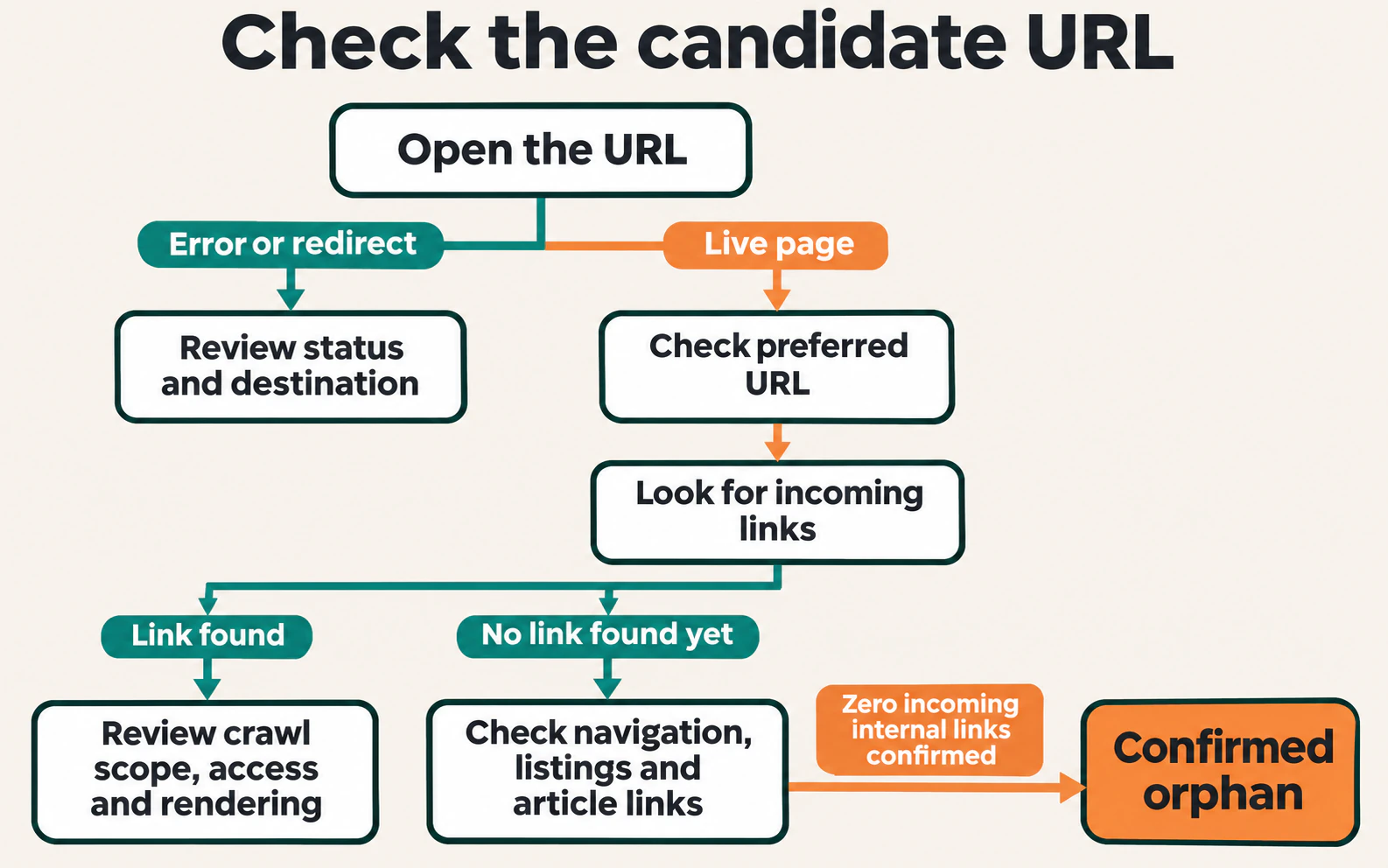
Open each candidate and check the current page. You need to know whether it is a live, useful destination and whether the missing route is real.
Start with these questions:
- Does the address still work? Separate a normal content page from an error page or a redirect to somewhere else. A crawler can report these responses in a status-code column.
- Is this the version you want visitors to use? Check for an old address or a duplicate before creating more links to it.
- Can you find a route from the home page? Try the expected category, overview, or related article. Record the pages you follow.
- Did the crawl include those pages? Recheck excluded folders, page limits, errors, and the rendering setting if you find a link the crawler missed.
Check what the report counts, too. Zero links from article text does not establish that navigation or category links are absent.
If the page should appear in search, also check whether an unintended noindex instruction or a crawling restriction needs attention. Those settings are separate from whether internal links exist.
A product found only by typing its name into a search box may still lack a linked browsing route. Check whether its category and later listing pages lead to it. Do not assume a crawler will search the website as a customer would.
When links appear only after the page runs code, compare the original HTML with the rendered page. This JavaScript SEO check helps distinguish a missing link from one your crawler was not configured to see. A button that changes pages also needs checking: its appearance alone does not establish that it contains a crawlable link.
Search Console’s internal-links report can provide supporting clues, but it is a sample and may include historical information. Absence from that report does not prove that a page currently has zero internal links.
5. Choose the right action for the page
Prioritize useful pages that visitors should be able to find: important services, current products, helpful guides, or pages that previously helped people complete a task. A large list of forgotten campaign URLs should not distract you from a missing route to a core service.
| What you find | Appropriate action |
|---|---|
| A useful current page with no incoming links | Add relevant links from reachable pages and restore its place in navigation or a listing where appropriate. |
| Several disconnected pages on the same subject | Connect a suitable overview or category to the group, then check each page’s route. |
| Content that substantially duplicates another page | Decide which content to keep or combine before adding more links. |
| A permanently replaced page | Redirect it to the relevant replacement and update links to use the current address. |
| A page that no longer has a purpose and has no suitable replacement | Remove it and return 404 (not found) or 410 (gone). |
| An intentionally separate campaign page | Confirm why it remains available, who maintains it, and whether its indexing settings match that purpose. |
If two guides appear to do the same job, compare the reader’s search intent before combining them. Similar wording does not mean the pages answer the same question.
For a genuine permanent replacement, a 301 redirect can take visitors from the old address to the new one. Redirecting every retired page to the home page gives people an unexpected destination. Choose a relevant replacement when one exists.
Add internal links where they help the reader
For a page worth keeping, choose a source that is already reachable and has a clear reason to mention it. An isolated page linking to another isolated page does not connect either to the main website.
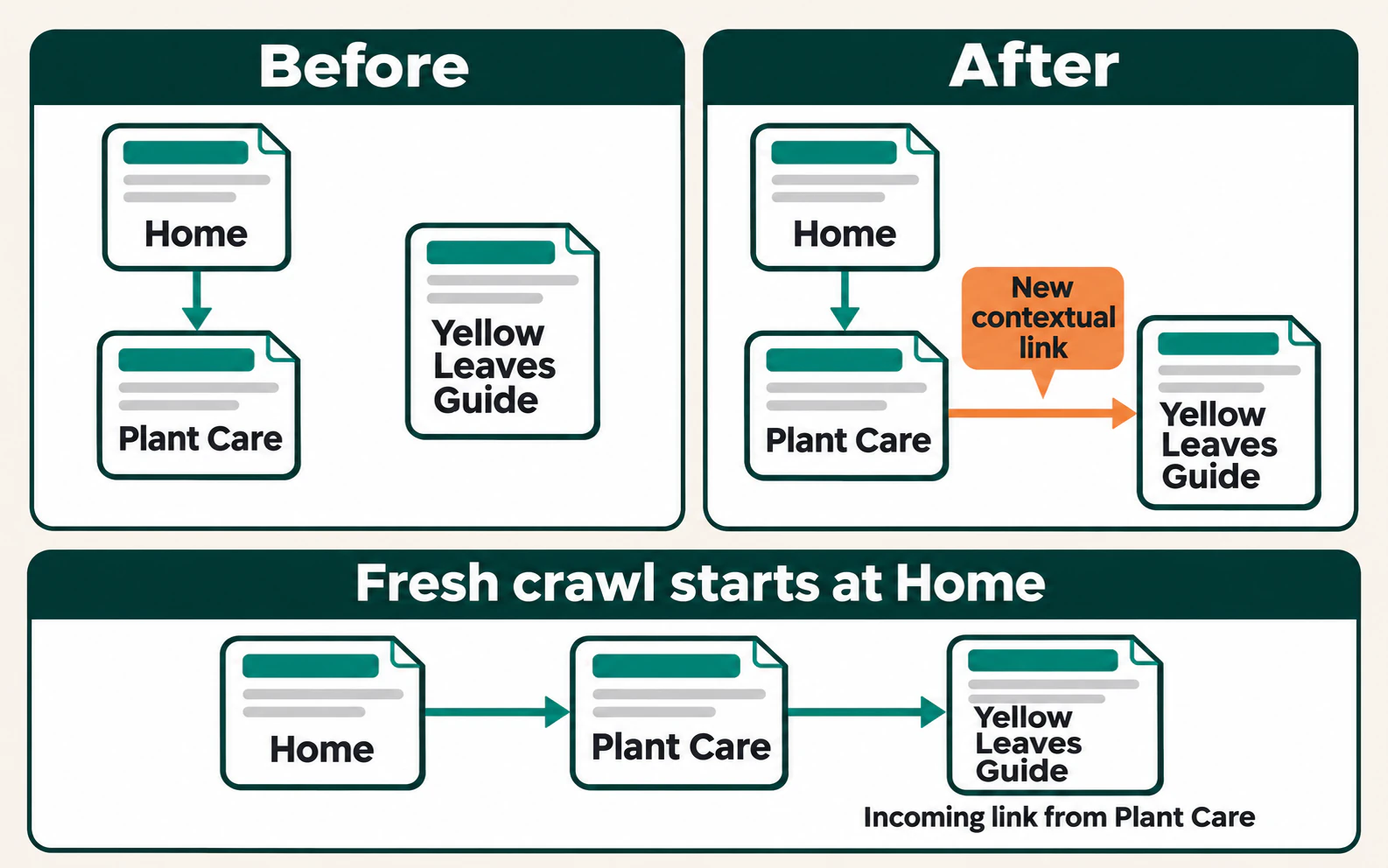
Suppose the yellow-leaves guide is useful but orphaned. Your plant-care overview already explains watering, sunlight, and common symptoms. A sentence in its symptoms section could say:
If the leaves turn yellow, check watering, light, and drainage before changing your plant-care routine.
You could link “check watering, light, and drainage” to the guide, provided it actually explains those checks. The sentence remains useful, and the destination answers a natural next question.
Choose descriptive anchor text, meaning the clickable words, that tells the reader what they will find. There is no need to repeat the article’s full title or fit an exact keyword into every link.
Depending on the page, the appropriate repair may be an article link, a category listing, a resource overview, or navigation. Check the direction: a breadcrumb inside the orphan page may lead back to its category, but the category still needs a route down to the page.
For older articles and products, check pagination: the links to the next pages of a listing. A listing that only exposes its newest items can leave older ones disconnected. Fixing the listing may restore routes to many pages at once.
Check that the link works as a link
In the page editor, select suitable words and add the destination using the link control. Then check the published page while logged out of the administration area.
A standard HTML link contains an address in its href attribute. A developer might write:
<a href="/guides/yellow-leaves/">check watering, light, and drainage</a>The address must match the destination’s actual location. For an important internal route, check that it is not unintentionally marked nofollow, which asks search engines not to follow the link.
You do not need a fixed number of links to every article. One relevant incoming link creates a route; other useful connections depend on the page’s role. A footer filled with unrelated links may clear a tool’s zero-link warning without helping visitors find the right information.
Verify the repair with a fresh crawl
After publishing the change, start from the home page again. Let the crawler follow internal links without treating the repaired URL as a supplied starting address.
Confirm that:
- The crawler reaches the source page and finds its link to the destination.
- The link opens the intended current page without an unnecessary redirect.
- The destination’s list of incoming links includes the source you changed. Some tools call these links inlinks.
- The route also works for someone browsing the public website.
If you repaired a shared category or archive template, check several older pages. Confirm that the fix reaches beyond the newest items.
Keep a short record of the affected URL, what caused the missing route, the linking page you changed, and the verification result. Search Console may take time to reflect website changes, so use the fresh crawl and live links to verify the immediate repair. Monitor search performance separately without assuming that any change comes only from the new link.
Prevent new orphan pages
Add one question to your publishing process: where will someone find this page while browsing the website? Choose that route before publishing, then check it afterward.
Review incoming links before deleting a category, replacing a menu, or retiring an article. After a redesign or migration, compare the new crawl with your content inventory. These are useful moments to catch broken routes before the affected pages are forgotten.
Assign recurring orphan pages to the underlying problem. If older posts repeatedly disappear from the crawl, investigate archive links rather than adding a manual link to each one every month.
Frequently asked questions
Does an XML sitemap fix orphan pages?
A sitemap can help a search engine discover a URL, but it does not add a link from another page on your website. A page can therefore appear in a sitemap and remain orphaned. Keep the sitemap accurate and restore a useful browsing route where the page needs one.
Can an orphan page be indexed by Google?
Yes. Google may know the URL from an external link, a sitemap, or links that existed in the past. Check current internal linking and indexing separately. An indexed result does not prove that visitors can reach the page from your website.
Does zero traffic mean a page is orphaned?
No. A well-linked page may have no recorded visits, while an orphan page may receive traffic from search, email, or advertising. Compare URLs and inspect incoming links rather than using traffic alone to decide.
Should every orphan page receive internal links?
Assess its purpose first. Useful public content usually needs a relevant route into it. An expired offer, duplicate, or intentionally separate campaign page may need a different action. The aim is to maintain a useful website, rather than give every old URL a new link.
JOIN THE CONVERSATION
Comments
Have a question or something to add? Comments are moderated and appear here only after approval.
JavaScript is required to submit a comment. Published comments above remain available to read.
No approved comments yet. Be the first to join the conversation.