
THE SHORT VERSION
What you’ll take away.
- Choose images that help explain the page, and place them beside relevant information.
- Write alt text for the image's information or function; decorative images can use an empty alternative.
- Use short, descriptive filenames, while keeping existing image URLs stable where practical.
- Check image markup, resource access, responsive delivery, and loading behaviour separately.
- A crawl can reveal image problems, but it cannot confirm Google's image indexing or judge every text alternative.
An image can show something that would take several paragraphs to explain: the shape of a product, a step in a procedure, or a pattern in some data. Its value depends on whether the visitor can find it, understand it, and use the information it adds.
Image SEO is the work of making website images useful, accessible, and available for search engines to discover and understand. It involves the image itself, its text alternative, the page around it, and the way the file is delivered.
If you write, edit, or manage website content, this guide will help you review those parts together. The practices apply to websites built with a publishing system, an online store, a framework, or hand-written HTML.
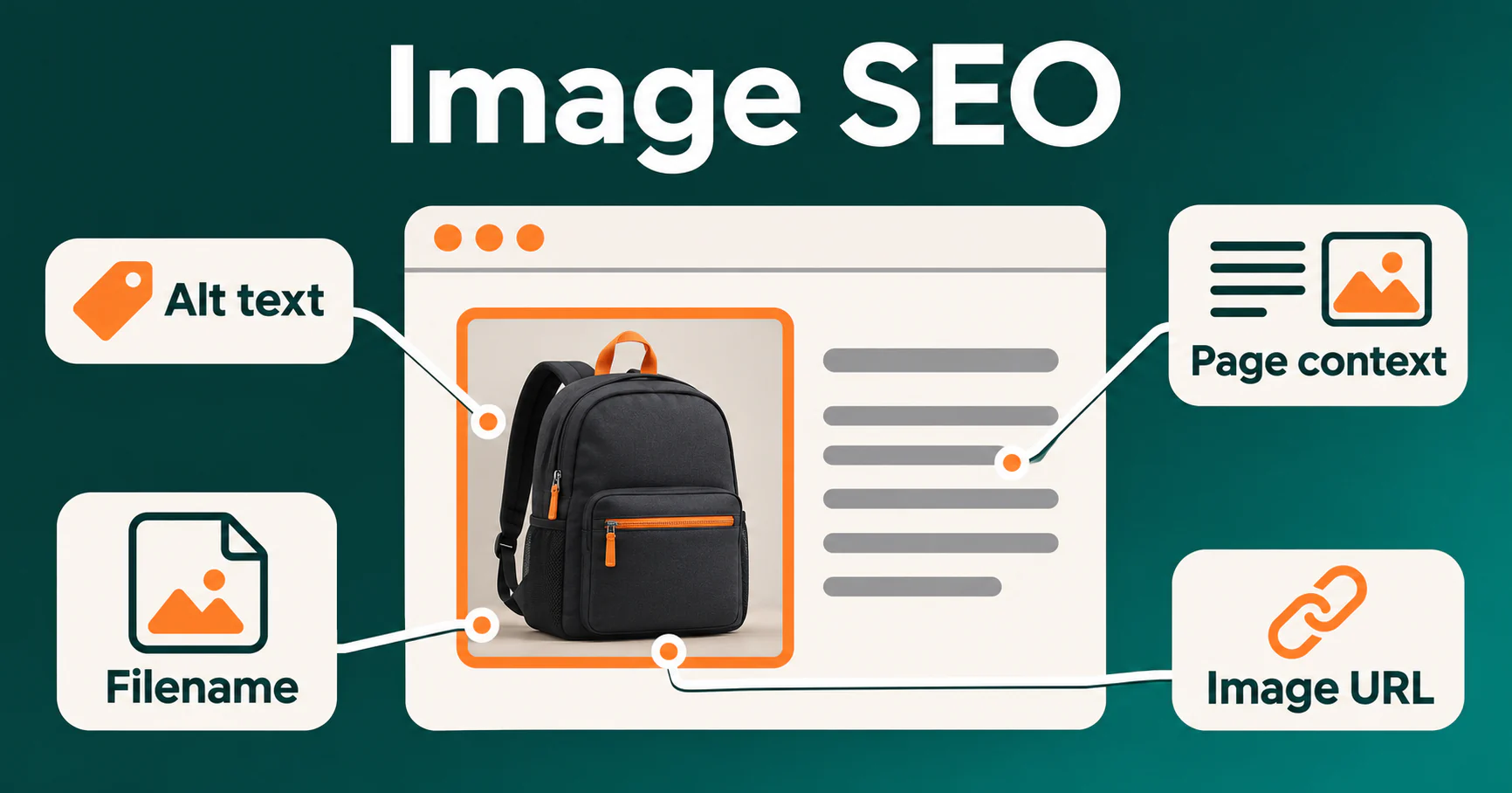
What does image SEO include?
There are three connected tasks: explain the image’s purpose, make the image available, and deliver it in a form visitors can use.
An informative image needs an appropriate text alternative. Its subject also needs a useful place in the page’s explanation. Separately, the file needs a working address and discoverable markup. Then it needs to load at a suitable size without unnecessarily delaying the page.
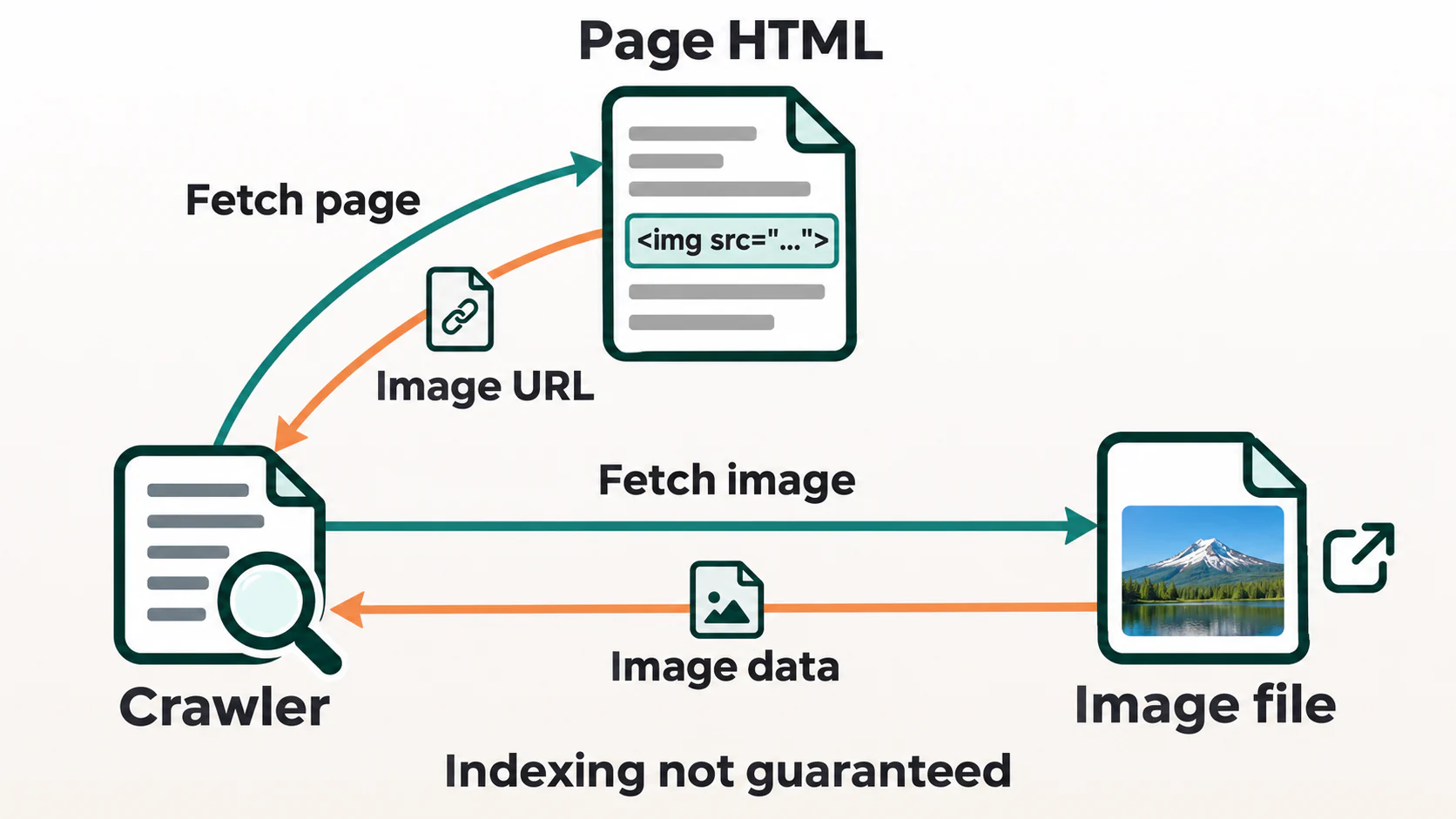
These checks answer different questions. A correctly written alternative does not repair a broken file. A small file does not explain an unclear diagram. A crawler downloading an image does not establish that Google has indexed it or will show it for a particular query.
Keep the page’s search intent in view. A picture belongs when it helps someone learn, compare, identify, or complete the task the page promises. Adding more pictures simply to increase their number can make that task harder.
Understand alt text, captions, and filenames
Several fields can describe an image, but they are not interchangeable:
| Part | Its job | Practical question |
|---|---|---|
| Alt text | Supplies a text alternative through the HTML alt attribute. |
What information or function would someone miss without this image? |
| Filename | Names the file within its URL. | Can this file be identified without a vague name such as photo-final-2.jpg? |
| Caption | Provides visible explanation, identification, or attribution beside an image. | What should everyone reading the page know about it? |
| Surrounding text | Explains how the image relates to the page’s subject. | Why is this image useful at this point in the answer? |
Image title attribute |
Can provide advisory information, sometimes displayed as a tooltip. | Is the essential information already available without relying on a hover? |
A media-library field called “title” may not produce the HTML title attribute, and a saved alt field may not reach every version of an image. Check the published markup rather than relying on the editor’s labels. An image title is also different from the document’s title tag.
Write alt text according to the image’s purpose
Alt text is a text alternative supplied through the alt attribute of an <img> element. It helps people access information when they cannot see the image, including people using screen readers. Browsers can also display it when an image fails to load.
Start by reading the surrounding paragraph and deciding what the image contributes. Describe the information needed in that context. Include a relevant subject naturally, without adding search phrases that the picture does not support.
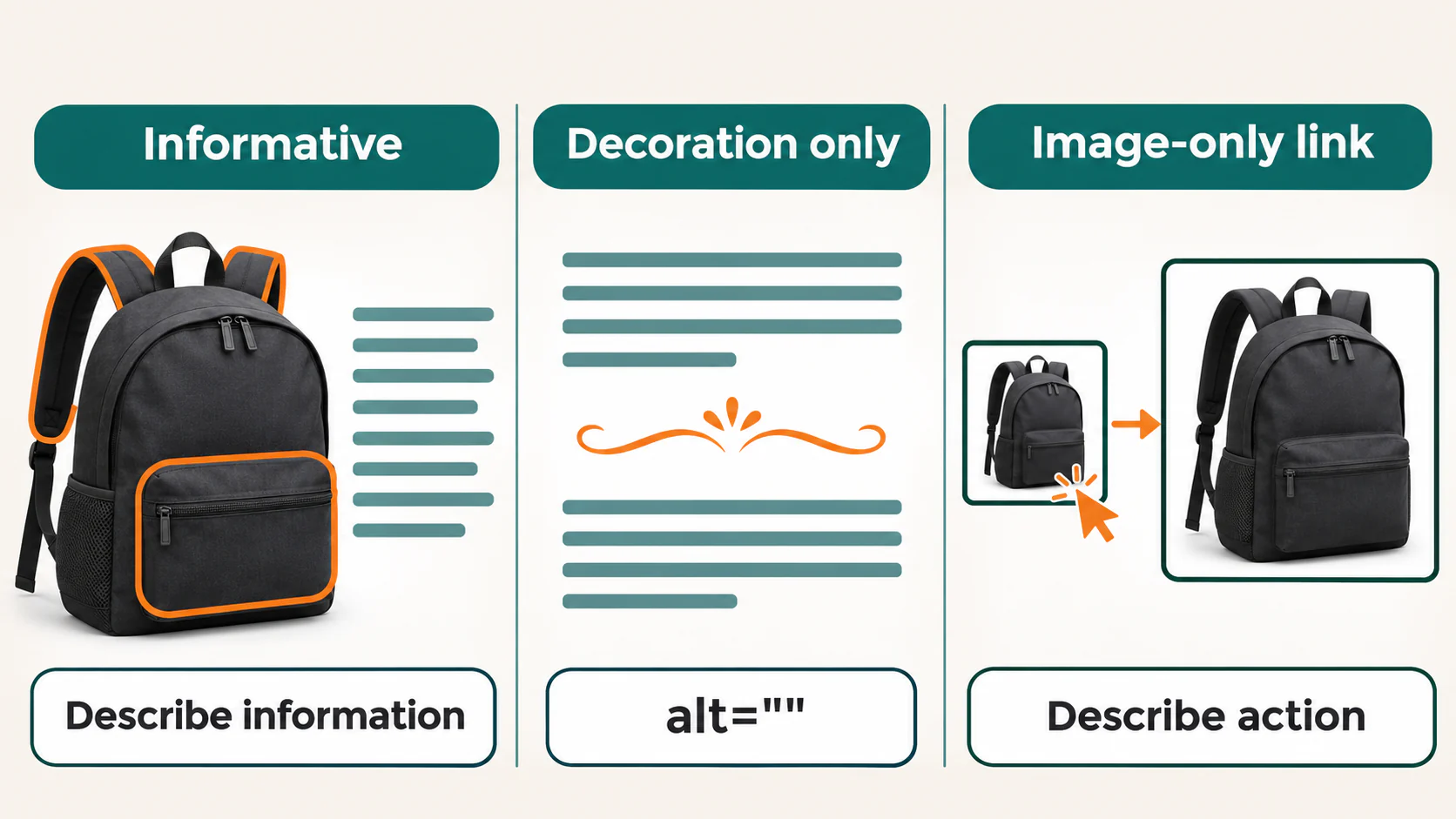
Informative images: describe the useful detail
For a photograph, name the relevant subject and the detail that matters. In an illustrative product example, “Blue backpack with a front zipped pocket and two side bottle holders” is more useful than “backpack image” when those features are what the picture shows.
The markup might be:
<img
  src="/images/blue-backpack-front.webp"
  alt="Blue backpack with a front zipped pocket and two side bottle holders"
  width="960"
  height="720">
The filenames and paths in these examples are illustrative. A real implementation needs the corresponding files and accurate descriptions.
Do not add invisible qualities such as “comfortable” or “best quality” merely because they are selling points. A photograph may show a padded strap; it cannot by itself establish comfort during a long walk.
Keep the alternative concise enough to serve its purpose. There is no universal SEO character target that makes an alternative correct. Remove irrelevant detail, and explain complex information in the page rather than forcing it all into one attribute.
Decorative images: use an empty alternative when appropriate
An image used only for decoration can have alt="". This tells assistive technologies that it does not need a spoken description. A decorative divider between two paragraphs may be an example.
An empty attribute is different from an absent attribute. With no alternative supplied, some screen readers may announce a filename or URL. That can add noise without useful meaning.
Judge the image in its actual location. A photograph used as decoration beside a complete explanation may add no necessary information there. The same photograph could be informative on a page identifying what it shows. Do not give every image an empty alternative simply to clear an audit warning.
Image links and controls: explain the destination or action
When an image is the only content of a link, its alternative needs to identify what the link opens. A linked logo might use “Example homepage”; an image used to open a larger product view needs wording that explains that action.
This is the same principle as choosing descriptive anchor text: the person should understand the destination before activating the link.
If an image and visible text are inside the same link and convey the same meaning, an empty image alternative can avoid announcing the label twice. If the image is the only label, removing its alternative can leave the link unnamed. Inspect the complete link or control before deciding.
Charts and diagrams: keep the full explanation available
A chart may need a short alternative identifying its subject, with the important findings and data supplied in nearby text or a table. The short label should help someone locate that fuller explanation.
For a screenshot used in a procedure, explain the relevant control and step in the page text. Visitors should not have to read small embedded text to complete the instructions.
W3C’s guidance on image text alternatives provides a useful distinction between informative, decorative, functional, and complex images. Make the decision from the information or function of the image in context.
Choose short, descriptive filenames
For new files, use a name that helps identify the image. A name such as ceramic-mug-side-view.webp is easier to understand than DSC_4821.webp or image-final-new.webp. Use a consistent naming convention, with clear words and a genuine file extension.
The name should describe the file, rather than repeat every phrase the page might target. cheap-best-mug-coffee-mug-buy-mug.webp adds repetition without identifying the view or item more clearly.
Google describes filenames as a light clue about an image’s subject. Treat good naming as useful context and asset organization, rather than a reason to rename an entire established library. Its image SEO guidance also emphasizes the page content and text alternatives.
Renaming a file usually changes its URL. For an existing image, identify the pages and templates referencing it before making that change. Update affected references and plan any necessary redirects from old URLs. Check references outside the visible article too, such as responsive image sets and page metadata.
A working image with a generic name may be a lower priority than a broken important image or an inaccessible diagram. Choose the change for the problem it solves.
Give the image useful page context
Place an image near the information it supports. A photograph of a product’s connectors is more useful beside an explanation of compatibility than in an unrelated introduction. The surrounding paragraph should tell the visitor what to notice and why it matters.
A caption can identify a view, explain a comparison, give a source, or disclose that a scene is illustrative. Use one when it adds information readers need. It does not have to repeat the alternative word for word.
Keep the relationship clear in the markup as well. A figure and its caption can be grouped with <figure> and <figcaption> as part of a meaningful HTML page structure. A visible caption does not automatically replace the image’s text alternative; assess what the complete presentation communicates.
Avoid using images to hide the page’s essential answer. Prices, instructions, comparison criteria, and important findings should be available as readable text when the task depends on them. That also makes the explanation easier to update and use on a small screen.
When reviewing repeated images, consider each placement. The same file can serve a different purpose on a different page, so its alternative may need different wording. Repeating an accurate alternative is also reasonable when the information and context remain the same. Variation alone is not an improvement.
Make the image discoverable and accessible to crawlers
Image discovery starts with a URL that a search engine can find. For an important content image, use a standard HTML <img> element with a working src. Responsive implementations should retain that fallback even when they also use <picture> or srcset.
Google does not index CSS background images through those declarations. Backgrounds can still be appropriate decoration, but an important content illustration should not depend on a background style as its only implementation.
Check what scripts add to the page
If JavaScript supplies the image, inspect the resulting document after it runs. A custom data-src field is not the same as an image URL being available in src. The implementation needs to expose the real resource in usable image markup.
Lazy loading defers images until they are needed. It should not depend solely on a person clicking a control or triggering a scroll event before important image content becomes available. Google’s crawler does not interact with a page as a visitor does.
Compare the response HTML, rendered markup, and tested output where available. The JavaScript SEO workflow helps trace whether a missing resource comes from the initial response, a failed script, a data request, or an interaction dependency.
Check the actual image resource
Open the image URL independently and inspect its response. A page can load correctly while its image returns an error, redirects to a sign-in page, or is blocked by the image host.
Check the relevant robots rules and access controls on the host serving the file, including a content delivery network when one is used. A content delivery network, or CDN, serves resources through distributed infrastructure; its host may have different rules from the main website.
An image response should contain the expected image content, not an HTML error page disguised by a successful status. If access differs between a browser and a crawler, investigate that difference before claiming Google has the same problem. A technical SEO audit helps keep these access observations separate from indexing evidence.
Use an image sitemap as an additional discovery route
An image sitemap associates a page URL with image URLs. It can supplement normal discovery, including for images that are harder to find through the page alone. Image entries can be added to an existing XML sitemap or supplied through a separate one.
Check that the entries use current image addresses and refer to the appropriate pages. An image listed on a CDN still needs to be accessible on that host. Sitemap inclusion cannot repair a failed request or guarantee indexing.
Keep reusable image URLs stable where practical. Creating a different address for the same unchanged file on every page adds unnecessary variants to request and maintain.
Deliver a suitable size without delaying the page
Image dimensions and file size describe different things. Dimensions are the pixel width and height. File size is the number of bytes in the image file. Check how many bytes the browser actually transfers too, since it may reuse a cached copy. An image can fit neatly on screen while still downloading a much larger file than the layout needs.
Choose dimensions and compression according to the detail the image must preserve. Inspect the result at the size people will actually use. A small product thumbnail and a detailed instructional screenshot have different needs, so one universal pixel size or file-size target is not useful.
Responsive images let the browser choose among suitable resources. For example:
<img
  src="/images/garden-path-960.webp"
  srcset="/images/garden-path-480.webp 480w,
          /images/garden-path-960.webp 960w"
  sizes="(max-width: 600px) 100vw, 600px"
  width="960"
  height="640"
  alt="Stone path between two raised garden beds"
  loading="lazy">
This illustrative example assumes versions of the same image at the stated widths. The sizes value describes its intended display width: the viewport width on a narrow layout and 600 pixels on a wider layout. Adjust it to match the real layout, including margins. Merely listing several files does not establish that the browser chooses an appropriate one.
The width and height attributes establish a ratio so the browser can reserve space before the image arrives. The layout must also size it appropriately. Reserving space helps prevent text from shifting as media loads.
The example uses lazy loading for an image farther down the page. An immediately visible main image, especially one responsible for Largest Contentful Paint, should not be delayed that way. Largest Contentful Paint measures when the largest qualifying visible image or text block is rendered. Check the actual element before choosing a loading strategy.
File formats such as WebP and AVIF can reduce transfer size for suitable images. Compare quality, transparency, browser needs, and the output of the publishing system. Renaming a .jpg extension to .webp does not convert the file.
Verify the selected resource and its transfer in browser developer tools, alongside mobile usability and performance. A smaller file is useful when it preserves the information and improves delivery; it does not by itself prove greater search visibility.
Keep preview metadata consistent with the page
A page may identify a representative image through social metadata or structured data. Check that this image exists, represents the current page, and is accessible at the declared URL. A product page should not continue to advertise a photograph of a retired version after its visible content changes.
The image in metadata, the visible image, its text alternative, and any caption have separate jobs. A preferred preview does not repair missing image markup or name an image-only link.
If schema markup includes image information, keep it consistent with the entity and content it describes. Supplying a preferred image does not give complete control over Google’s chosen preview, and valid structured data does not guarantee a rich result.
Audit images from the page back to the file
Begin with an important page and identify its main image, informative supporting images, decorative elements, and image links. Read each alternative beside the relevant content. Ask whether the text communicates the actual information or function.
Then inspect delivery. Open the image’s resource URL, check its response, and confirm which version the browser selects on different screen sizes. Where scripts create the markup, compare the initial response with the rendered page. Record the URL, observation, and conditions so the issue can be checked again.
For a larger review, group findings by template and cause. A missing alternative on a single diagram needs an editorial decision. Empty alternatives across a whole catalogue may indicate that the publishing template is ignoring a populated field. A broken shared file can affect several pages.
SEO Neurons Spider’s image audit tools can help locate affected resources and their referring pages. Crawl the relevant section with the required image and link capture, using JavaScript rendering where scripts create the images. Review the affected image resource URL, then inspect its Inlinks to find the captured source pages and alternative text. Open those pages to decide whether the problem belongs in the file reference, a content field, or the shared template.
A missing-alt finding is different from an intentional empty alternative. Reused or long alternatives also need contextual review. Browser-dependent sizing findings require rendered measurements, and transfer-size findings require available resource-size evidence. Interpret the results within the captured scope; the tool does not determine whether every description is useful, confirm Google’s image indexing, or compress and repair the website automatically.
Correct the responsible content field, template, or file reference, then repeat the original check. Verify another page using the same template when the correction is shared. A new audit count alone cannot tell you whether the remaining alternatives are meaningful.
If you have Search Console access, review Search results with the Image search type to examine reported impressions, clicks, queries, and landing pages. Keep the search type and other filters consistent when comparing periods. Those observations describe the reported search activity, not a complete image inventory or proof that an edit caused a change.
Image SEO checklist
- The image adds useful information or has a clear decorative purpose.
- Informative alternatives describe what matters in the page’s context.
- Decorative images use empty alternatives where appropriate.
- Image-only links and controls have an understandable destination or action.
- Complex information and essential instructions have an accessible text explanation.
- New filenames are descriptive, without repeated keyword lists.
- Captions and surrounding text explain the image’s relationship to the page.
- Important images use discoverable markup and expose the intended resource URLs.
- Image hosts allow the required access and return the expected files.
- Responsive resources, compression, and dimensions suit the layout and needed detail.
- Loading behaviour preserves prompt delivery of immediately important images.
- Any sitemap entries and preview metadata use appropriate current URLs.
- Corrections have been checked on the actual page and relevant template examples.
Choose one important page and follow an image through these checks. Confirm what it contributes, whether its alternative serves that purpose, how its address is discovered, and what the visitor receives. That produces a useful correction with a clear way to verify it.
JOIN THE CONVERSATION
Comments
Have a question or something to add? Comments are moderated and appear here only after approval.
JavaScript is required to submit a comment. Published comments above remain available to read.
No approved comments yet. Be the first to join the conversation.